1- Click on the (Users icon) tab on the left panel
2- All Users will be displayed, showing their email address, their role and the number of teams they have already been invited to.
3- Double click on a User and a number of options appear in the right hand panel. Add To a Team, Change Role, Update Permissions, Delete User
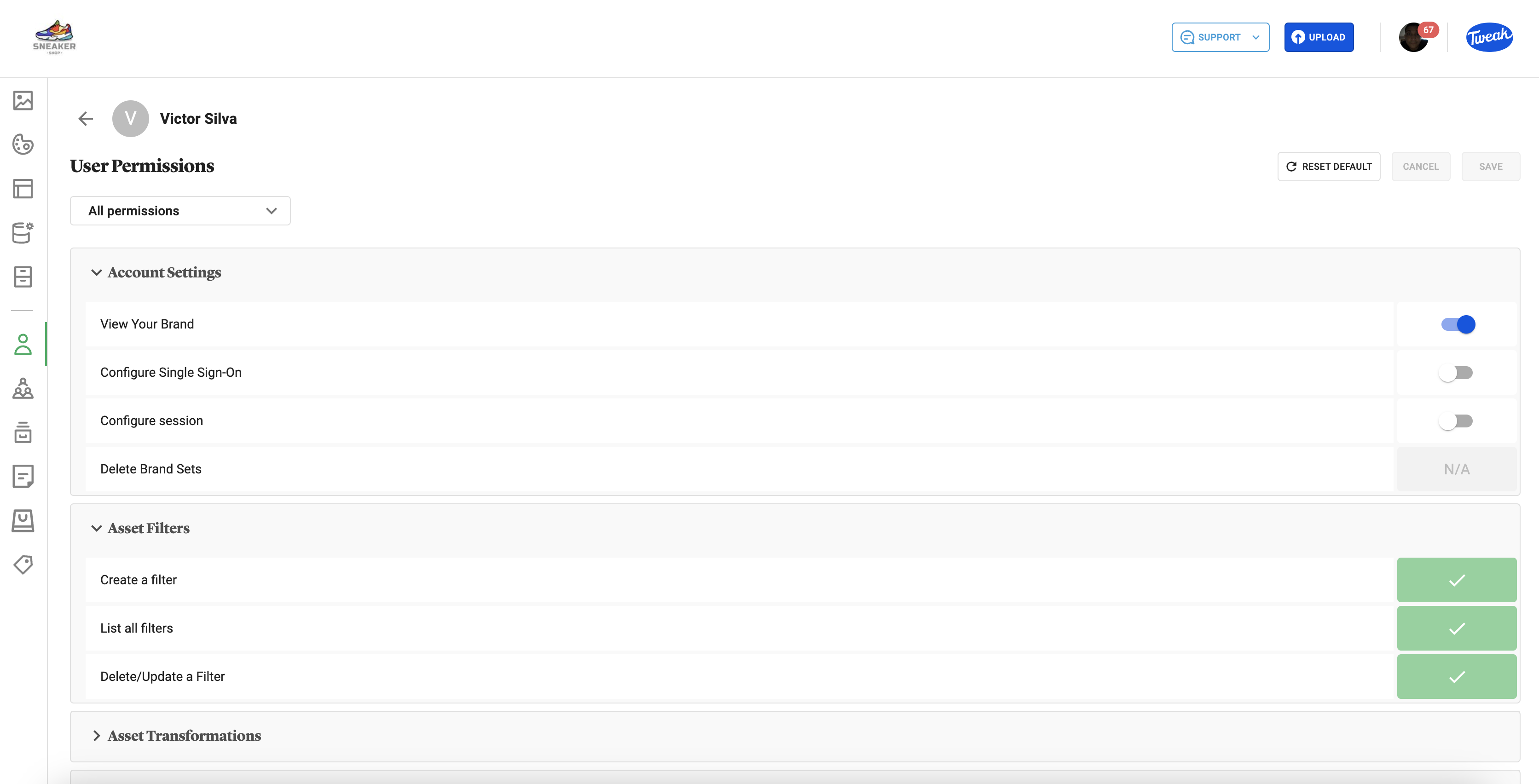
4- Click Update Permissions to see the available permissions for the User.
5- Click to open each section. N/A indicates that the permission is not editable. Depending on role, a variety of permissions may be editing depending on the User’s role. To return to defaults click on Reset Default.