1- Click on the (Users icon) tab on the left panel
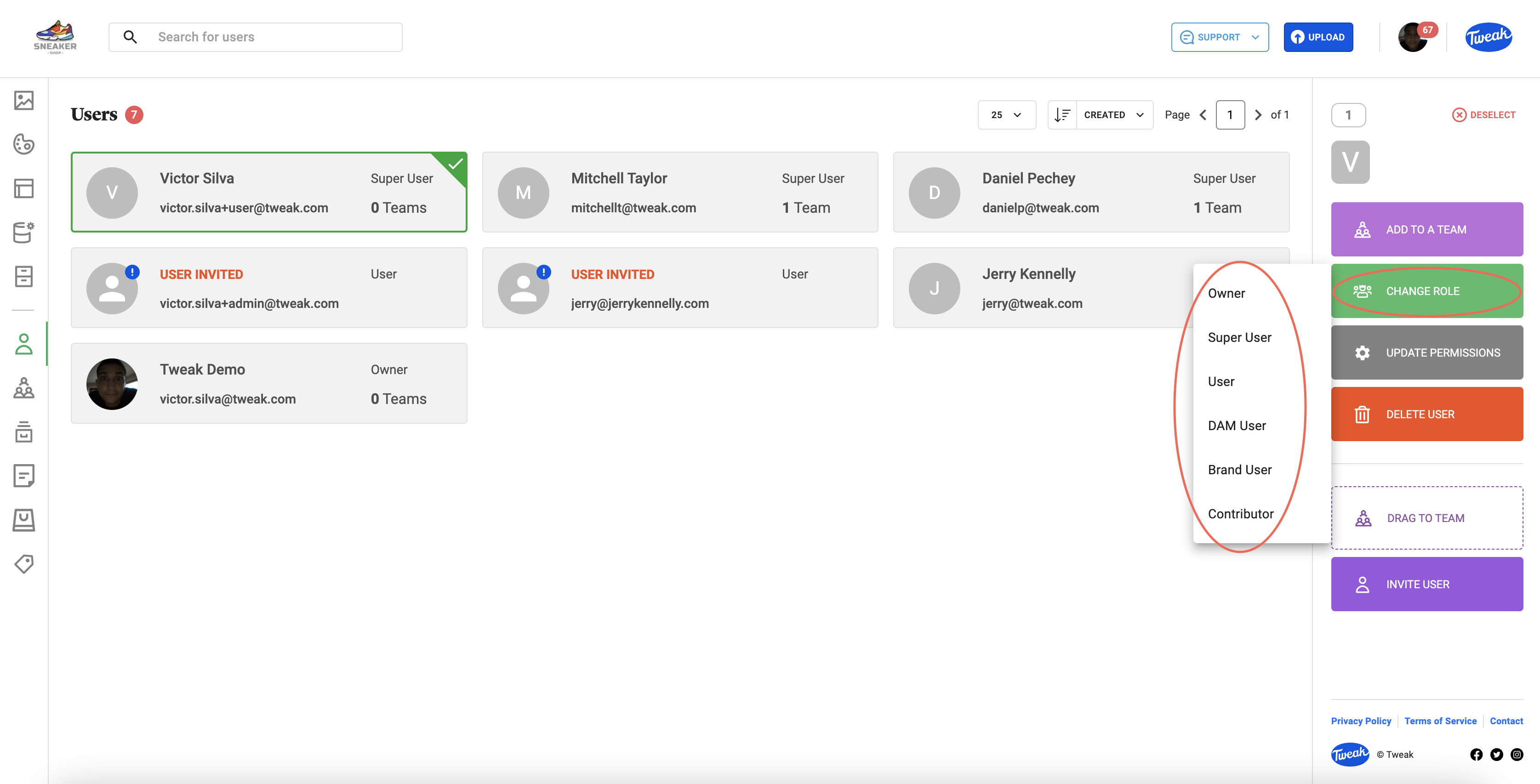
2- All Users will be displayed, showing their email address, their role and the number of teams they have already been invited to.
3- Click on a User and a number of options appear in the right hand panel. Add To a Team, Change Role, Update Permissions, Delete User
4. Click Change Role and select the new role you wish to apply, ensuring that you are within the number of roles for each user type in your Tweak plan. Extra team members and upgraded roles, may involve extra cost if you are already at your quota.