
A campaign is a sale or promotion which enables specific products to have promoted prices and other modified information.
It’s possible to modify the product title and the featured product images for Campaigns with Smart Overlays, Labels, Background Removal, Colorisation and other image enhancements. Campaigns can be scheduled in advance to launch at a specific time and date and it will automatically revert to the original state of the product data and images.
Only Admins and Managers are allowed to Publish or Schedule Campaigns, Editors will only be permitted to save Campaigns as Draft.
1. Go to the Campaigns section by clicking on the Bag icon left panel.
2. Click on Campaigns at the top of the page.
3. On the Campaigns page, Campaigns can be filtered by their Status.
4. To create a new Campaign, click on the button Create New on the top right, add your Campaigns Title and Confirm.

When your Campaign is created, it's time to prepare for launch.
The Campaign Manager provides you with options to set up sales/campaigns.
On the left side panel, product titles can be enhanced by adding prefixes or suffixes. This feature enables you to customize the display of your product titles to align with the theme or messaging of your campaign.
On the side panel, there are two types of discounts that can be applied to products in bulk: Percentage discount that will be applied to all the products in your campaign. Alternatively, a Fixed discount amount can be set for each product within the campaign. This is particularly useful when a specific monetary discount needs to be offered on products. In addition to applying percentage or fixed discounts, the Campaign Manager enables you to manually update the discount prices for individual products and variants by clicking on the Discount Price of the product/variant.
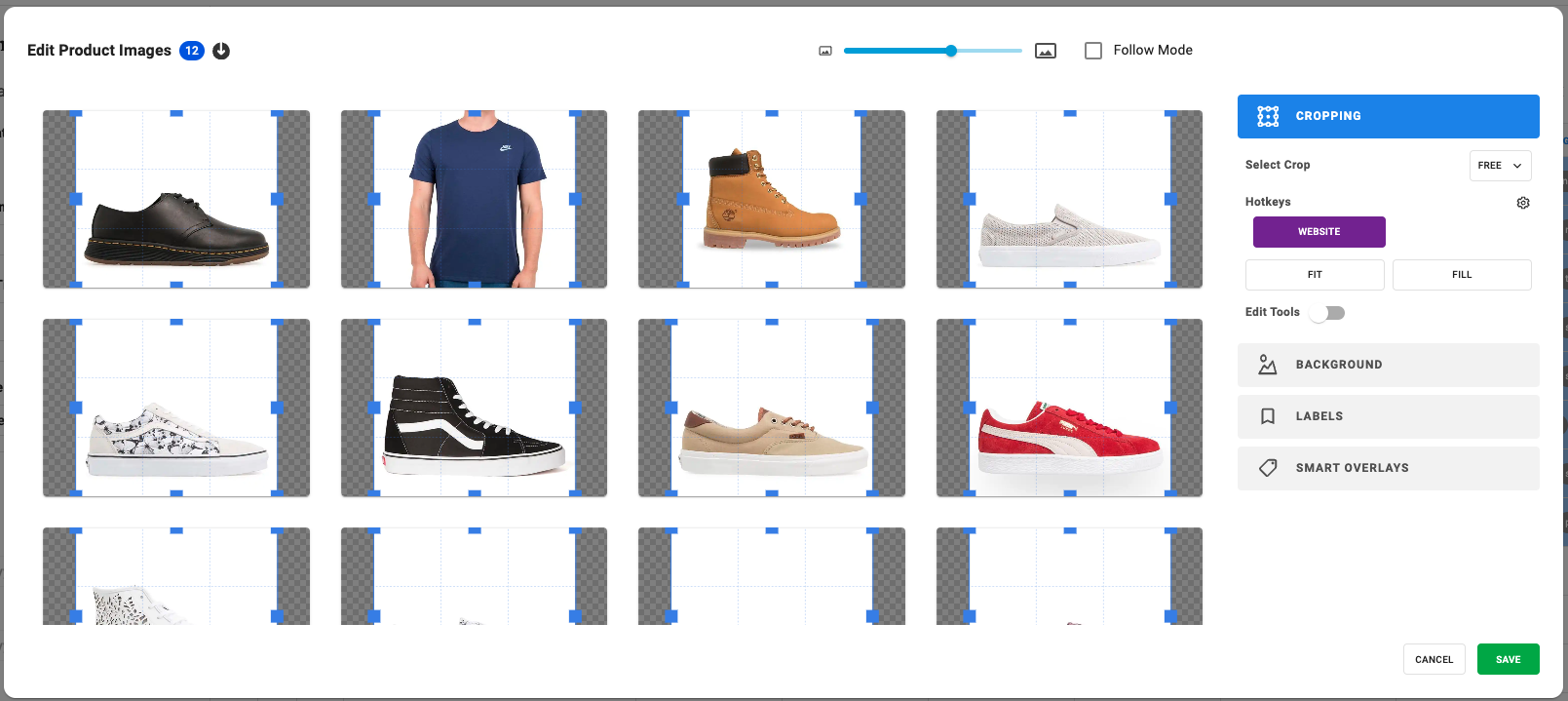
To make your campaign visually appealing, you can update the featured image associated with the campaign by selecting your product and clicking on Edit Images. This image serves as the primary representation of your campaign and helps capture the attention of your customers. Edited Featured Images of products on Campaigns are only displayed on products for the duration of the Campaign, rolling back to the previous status once the Campaign ends.
On the bottom left by clicking on the green button Campaigns can be Scheduled, Published or saved as Drafts. Editors will only be allowed to save as Draft, while Managers can Schedule and Publish.








