
Groups on the template editor are containers for elements, you can have multiple groups with one or more elements. These are most effective when they contain multiple elements. You can also add a layer/s of elements on top of a group, to improve the connectivity. Groups can be saved to a library that can be accessed at any time in future.
Smart Groups are containers of groups, in situations where you have closely related or linked groups, you can store them inside smart groups for better management and a more organised workspace. Smart Groups can be saved to a library that can be accessed at any time in future. Groups on the Smart Group can be reorded. Smart Groups can also be ungrouped.
These are special groups for text elements that allow you to manipulate text elements dynamically with layers from groups. Multi-Inline can have Fit Text to Frame enable.
1- Connecting Template with Data Source if not connected. When the Template it’s connected with the Data Source on the Smart Data tab a pill with the name of the Data Source will be displayed.
2- On the Template select the element you wish to Connect with Groups.
3- With the element select you will be asked to Add to a Group or Create a New Group.

4.1- For Images: Weather creating a new group or choosing an existing group the next option it’s to select Image Property from the Data Source and Scaling(Fit or Fill).

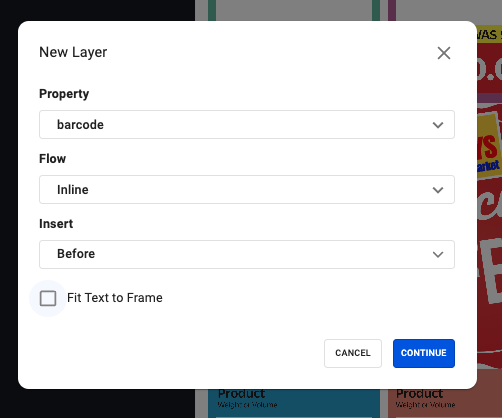
4.2- For Text: Weather creating a new group or choosing an existing group the next option it’s to select Text Property from the Data Source, Text Flow(Inline or Frame) and also define if Fit Text to Frame it’s enabled, in case of Inline select Text Insert(Before, After and Replace)will be present.
When Inline the next step it’s to confirm the structure of the Inline on the Inline Editor. Click on apply in the end of the editing. Text properties can have Conditional Rules added.

4.3- For Shapes: When selecting or creating groups they will be automatically connected.

1- To create Smart Groups open the Smart Data tab and on the Group header click on the 3 dots icon.
2- Click on Add to Smart Group.

3- You will now be asked to Create a new Smart Groups or Select an existing Smart Groups.
4- When clicking on Continue your Groups will be added to the Smart Group.


1- With the Smart Data tab open, select a Text Box that’s not connected with Smart Data.
2- Click on the Multi-Inline option.

3- Once the Multi-Inline it’s created you can start populating the Multi-Inline Text Box.
4- The properties part of Multi-Inline are Properties from Groups. These properties are already in use on the Group or Created Layers that are properties that are not in use on the Group but the information it’s necessary to the Multi-Inline.
5- Populating Multi-Inline Text Box works by Dragging Properties of Layer into the Multi-Inline Text Box. Click on the 6 Dots icon an drag into the Multi-Inline Text Box.








