Smart Publishing Smart Template is a powerful feature within the Tweak platform that enhances the flexibility and customization options of your output generation process. By utilizing Smart Templates, you can go beyond simple data merging and create dynamic outputs tailored to your specific needs.
With Smart Templates, you can use your template connected with Smart Data, enabling you to replace properties with other others. This opens up a wide range of possibilities for customization.
For example, you can easily switch the currency used in your template by replacing the currency property with another property that contains the desired currency value.
Similarly, you can change the language, font, or any other aspect of the template based on the properties within your Smart Data source.
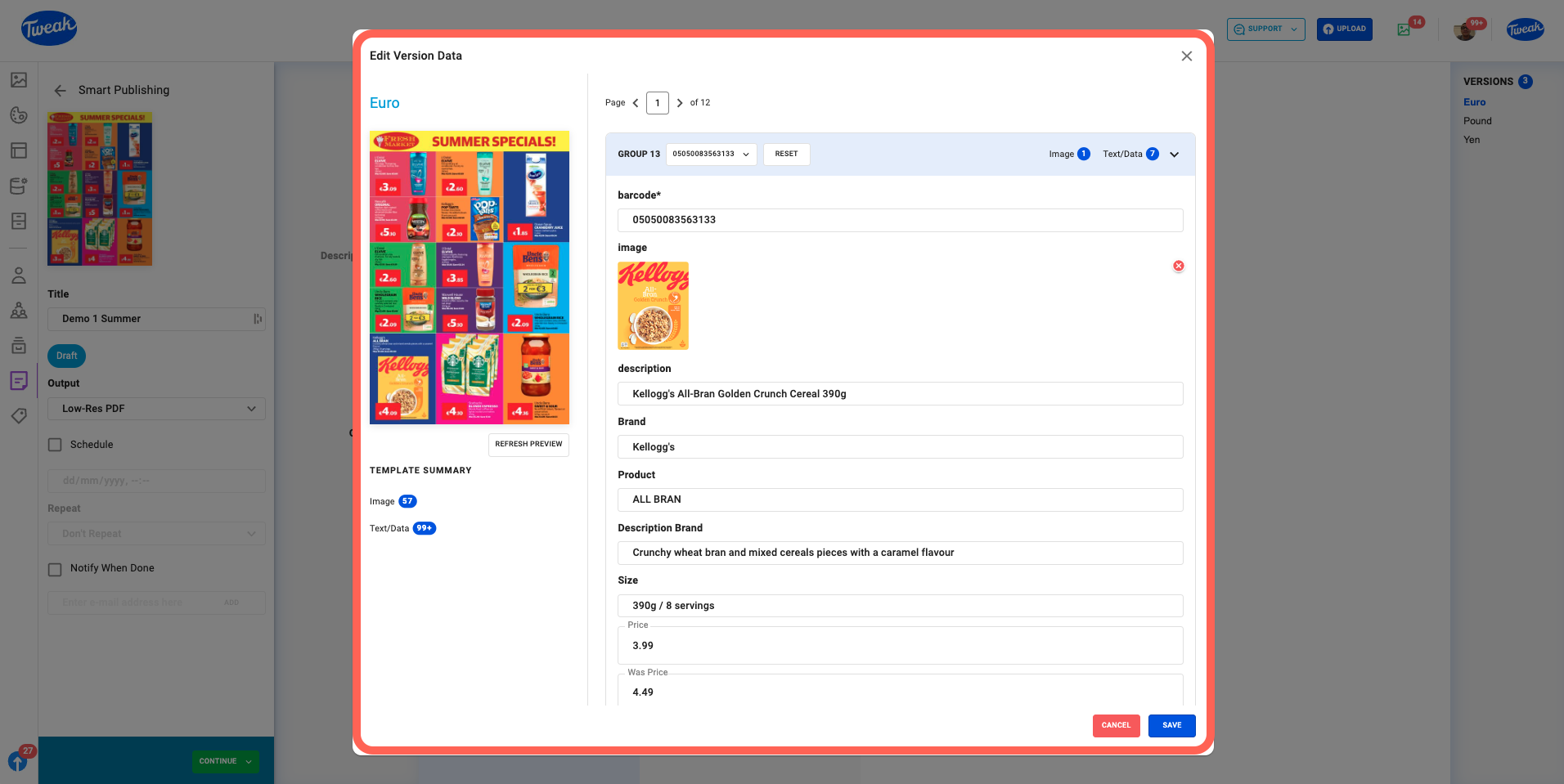
The Edit Version tool further enhances the capabilities of Smart Templates by allowing you to modify the records directly within the template. This means you can make changes to individual data entries, such as updating product descriptions or adjusting pricing, without the need to modify the original data source or in the Template Editor.
By leveraging Smart Publishing Smart Templates, you have the power to create highly personalized and dynamic outputs that adapt to the specific requirements of each record in your data source. This level of flexibility and customization empowers you to deliver tailored content efficiently and effectively.
1- Click on Smart Publishing on the left toolbar of the Tweak platform and select the Smart Template tab.
2- Click on the Add New button below Smart Template or on the right panel.
3- Select a template that is connected to a data source and add a suitable title, confirming the Title.


1- Click on the plus icon underneath Current to add a version/s.
2- Once you’ve created the versions you can Edit, Delete and Duplicate Versions as well as change the title.
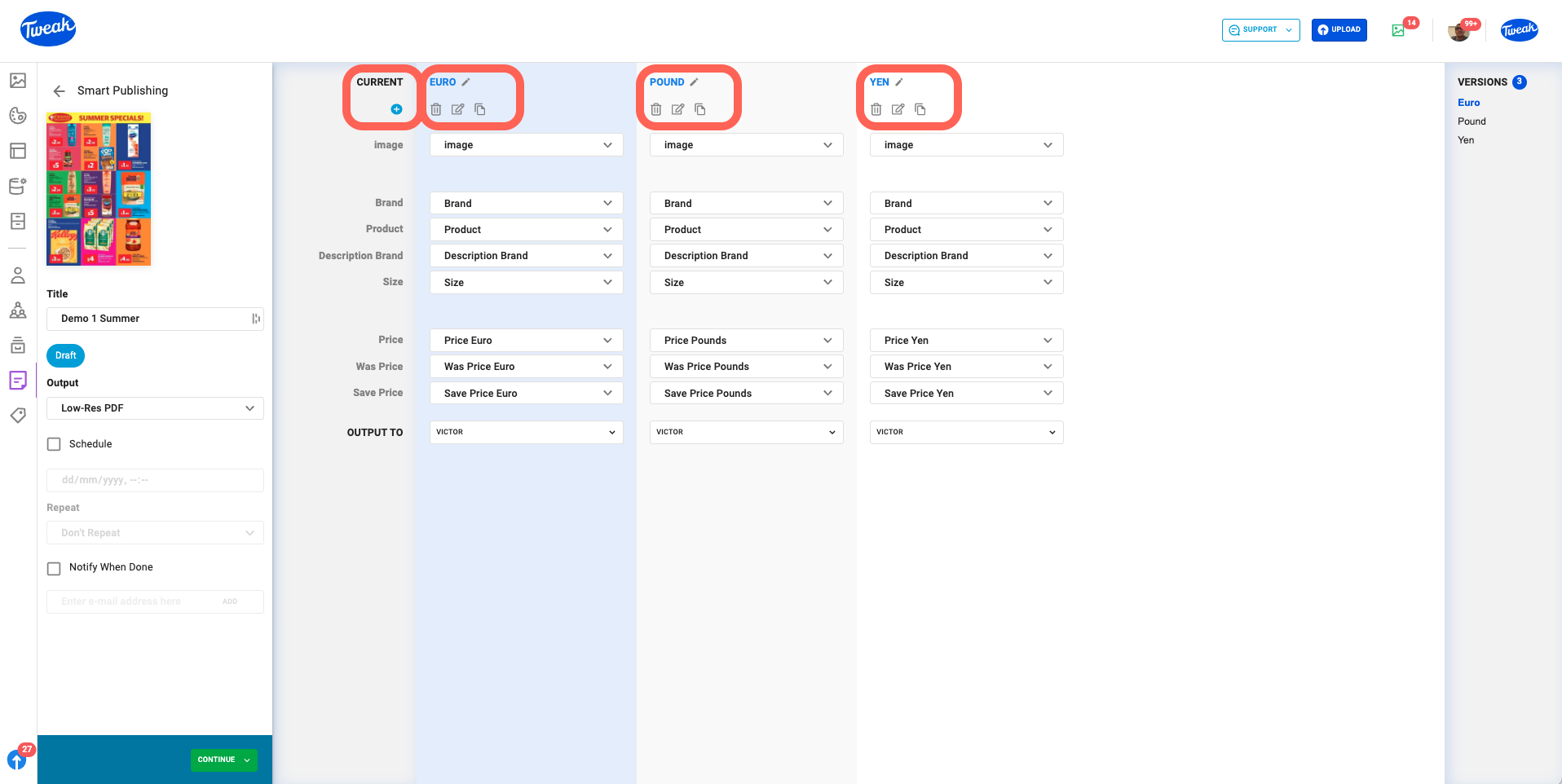
2.1- Editing Versions: The Edit actions include: changing records on the Smart Data Groups, or manually editing Record applied.
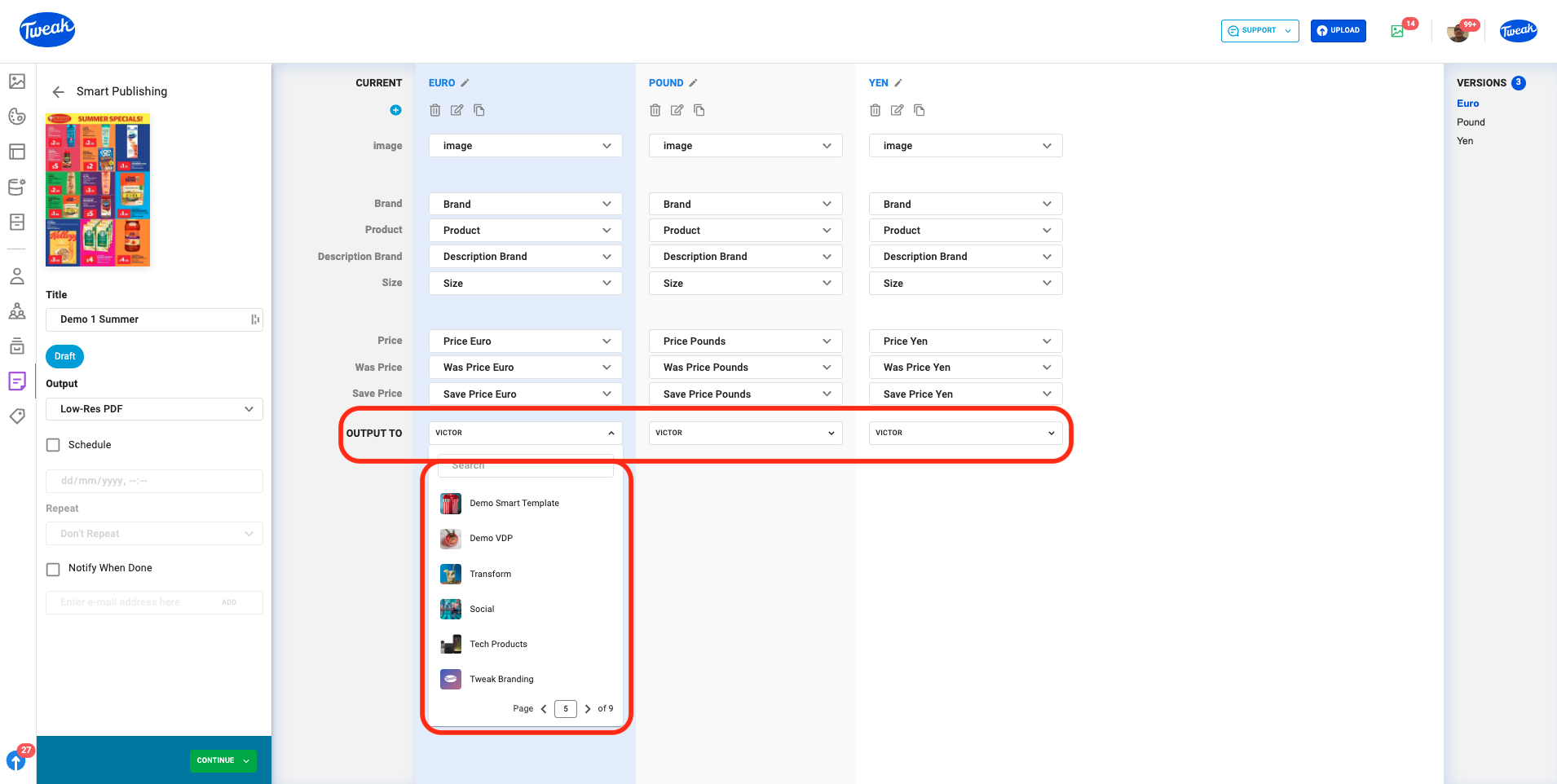
3- On the versions for default the property that is in use on the template will be selected and when clicking available properties from the Data Source will be displayed. Properties displayed bellow the Current column are the ones in use on the template.

4- Click on the Output to dropdown to select a collection to store the published Smart Publishing Smart Template.
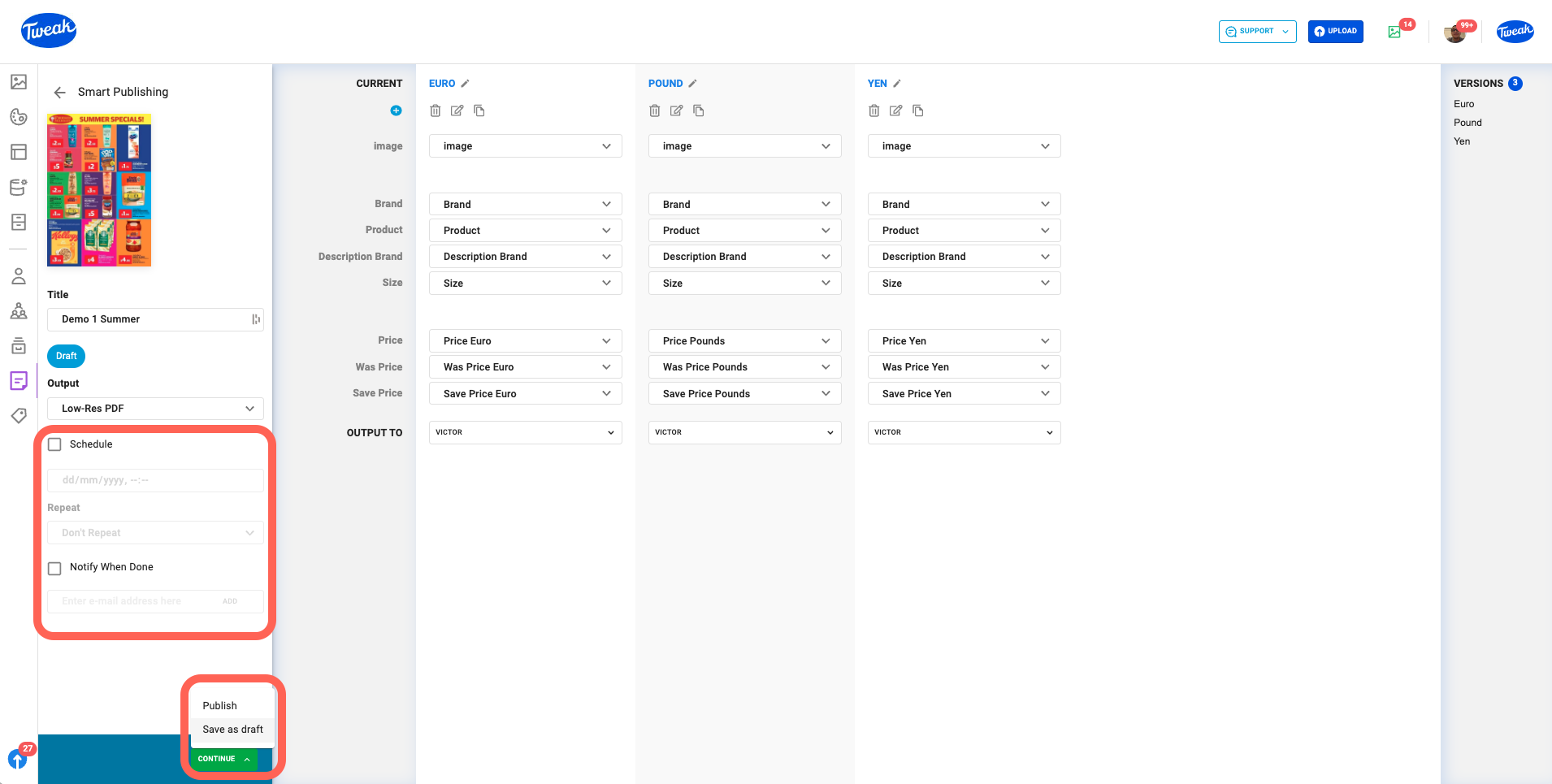
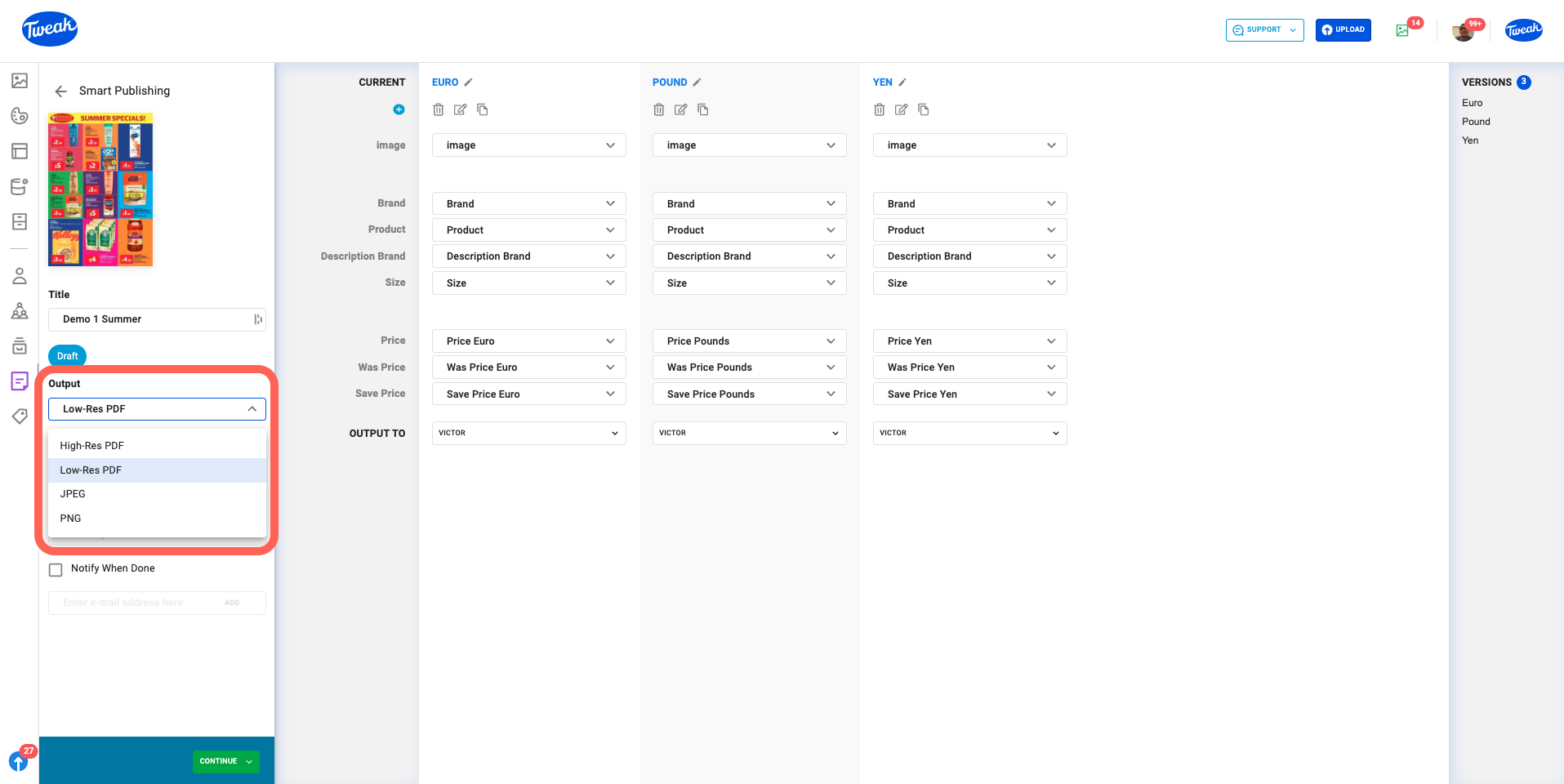
1- Select the Output that’s the file type that will be generated with the Smart Publishing. Options available are: High-Res-PDF, Low-Res-PDF, JPEG and PNG. Images output will have DPI and quality options. High Resolution PDFs can have Prepress Settings.
2- If needed, check the Schedule checkbox to schedule the release of the Smart Template and optionally repeat the process.
3- Click on Continue on the left bottom to either Publish, Schedule or Save as draft.