
Before creating your online template in Tweak, it is essential to ensure that your Adobe InDesign document is compatible. Refer to the Tweak Designer Guide document provided to ensure that your file meets the necessary requirements for seamless integration with Tweak. The Design Guided can be downloaded from the button on the top of the page.
Open your InDesign document and verify that there are no missing fonts or images. Tweak supports only compressed (.zip) InDesign packaged files that include a .idml file, graphic links, and fonts. If you are using Typekit fonts, they cannot be exported and should be replaced with other fonts before packaging.

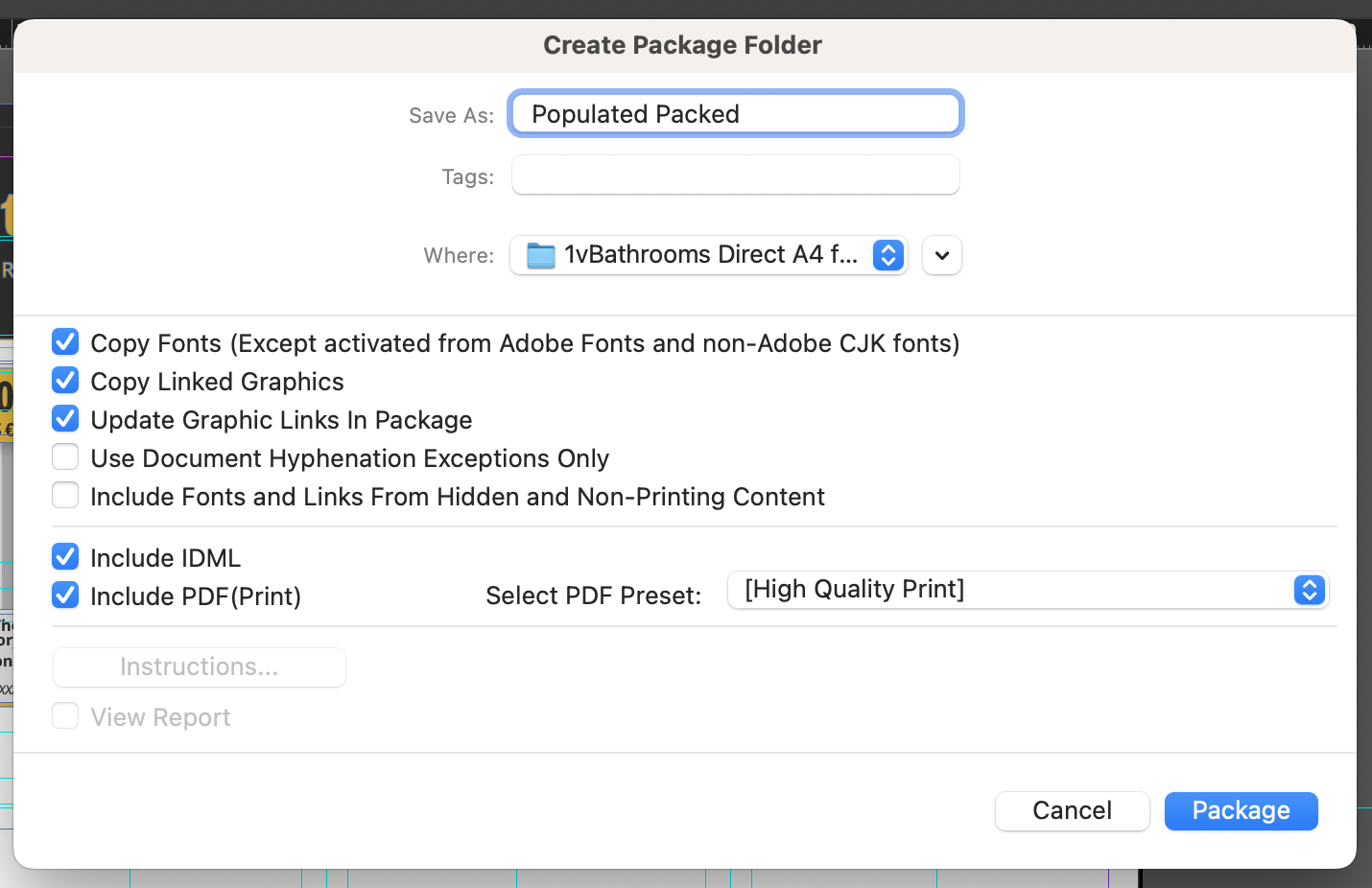
Go to File > Package in Adobe InDesign. Before saving your file, ensure that you check the tickbox that says "Include .idml." This will include the necessary .idml file for compatibility with Tweak.
On Mac: Right-click the packaged folder and click "Compress" to create a compressed .zip file.
On PC: Right-click the packaged folder and click "Send to Compressed Folder" to create a compressed .zip file.
By following these steps, you will have successfully prepared your Adobe InDesign template for use in Tweak.
Now, you can proceed to upload and customize your template within the Tweak platform for seamless online editing and design customization.







