
Smart Publishing is a powerful feature that leverages templates connected with Smart Data to streamline the process of output generation. It enables the creation of multiple outputs in a short period of time, saving valuable time and effort.
One aspect of Smart Publishing is Variable Data. With Variable Data, a template that is connected to a data source, and the automation process generates individual outputs for each record in the data source. This is particularly useful when working with templates that have unique content for each record.
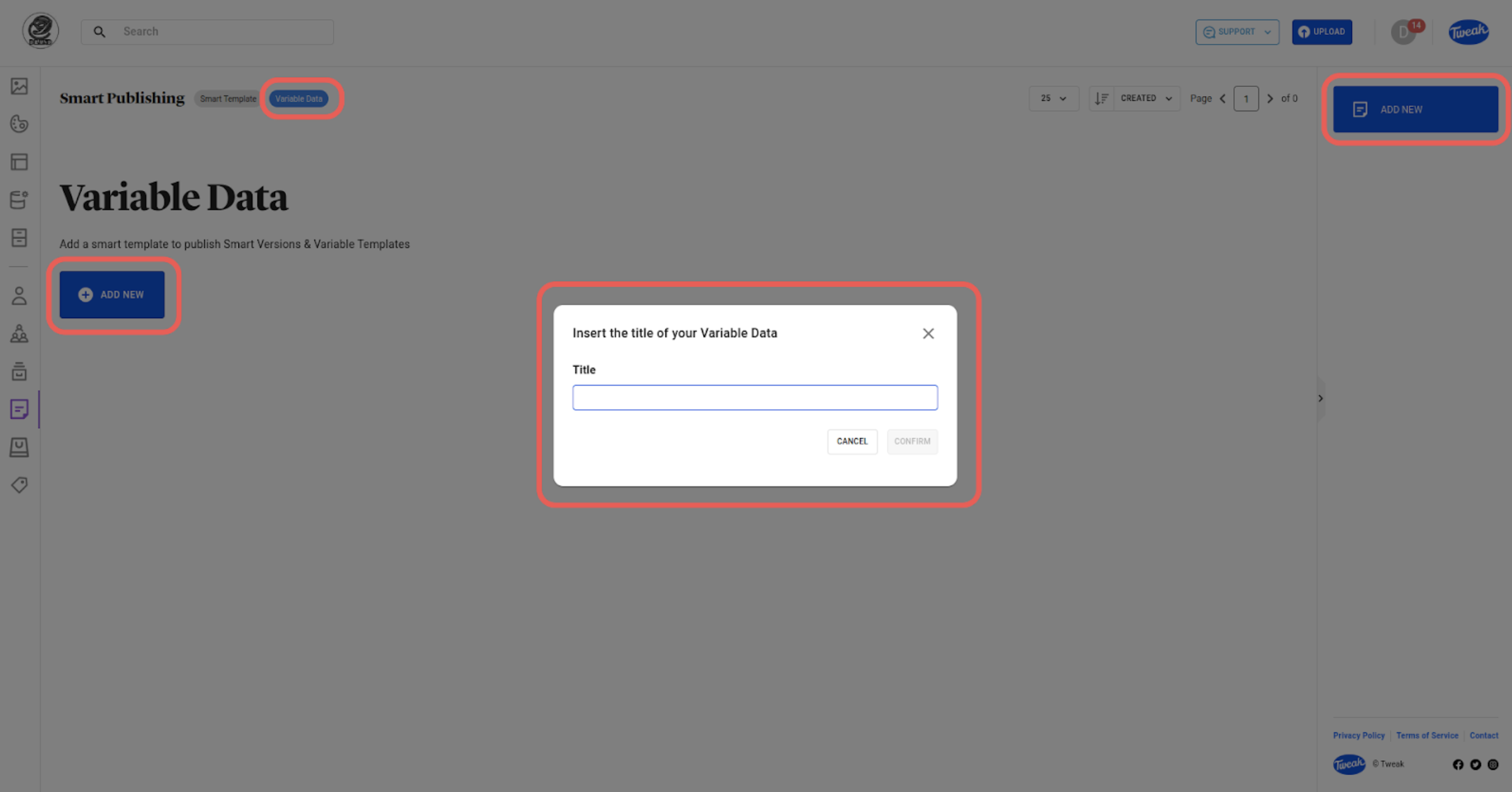
1- Click on Smart Publishing on the left toolbar of the Tweak platform and select the Variable Data tab.
2- Click on the Add New button below Variable Data or on the right panel.
3- Select a template that is connected to a data source and add a suitable title, confirming the Title.

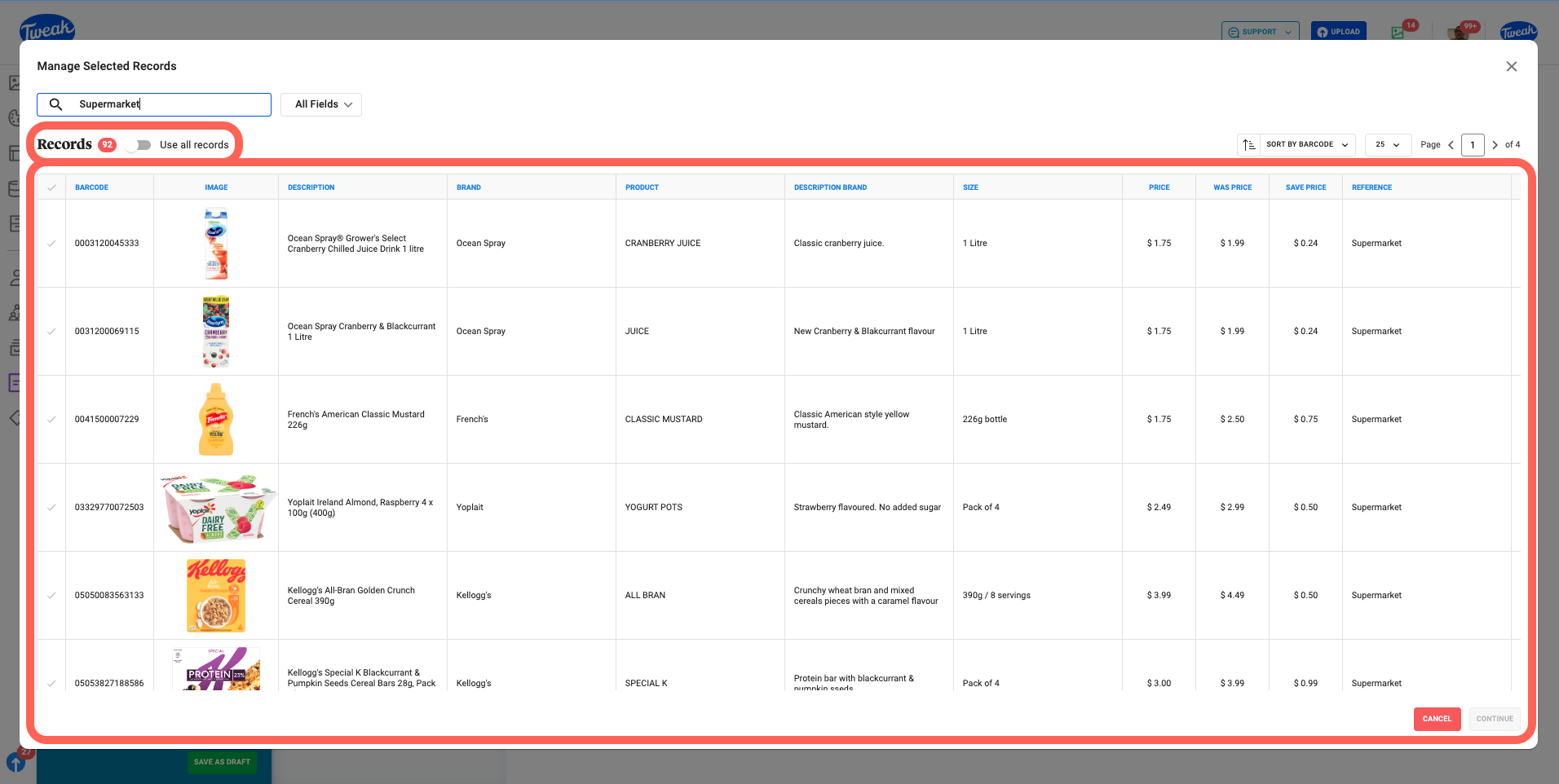
1- Click on Select Data or Manage Selected Records to add records to the Smart Publishing. You can use all records or select a few of the available records. Click on Continue when the Records are selected.

2- Select the Output that’s the file type that will be generated with the Smart Publishing. Options available are: High-Res-PDF, Low-Res-PDF, JPEG and PNG. Images output will have DPI and quality options. PDFs can be Multipage documents and High Resolution PDFs can have Prepress Settings.
3- Selet the Output To that’s the Tweak Collections where the generated files will be available when published.
4- If needed, check the Schedule checkbox to schedule the release of the Variable Data and optionally repeat the process.
5- Click on Continue on the left bottom to either Publish, Schedule or Save as draft.








