
If you prefer a more interactive and engaging way to present your Templates and Designs, you can export them as Slideshow..
A Slideshow is a digital publication that simulates the experience of flipping through pages like a physical book. Alternatively to Flipbooks, on Slideshow you can configurate autoplay options like Time, Crossfade and Repeat Slideshow.
When exporting Templates and Designs as Slideshow, any existing hotlinks within the content will be preserved. These hotlinks can be set on specific areas of the smart data groups or chosen areas, allowing users to interact with the content by clicking on the designated hotlink areas.
The available export options depend on the Template Preferences you've set. Each Template may have different export formats and configurations.
Every export automatically saves the template, ensuring easy access to the exported files whenever needed.
If a Template requires approval, non-superusers can only export it after following the designated approval flow.
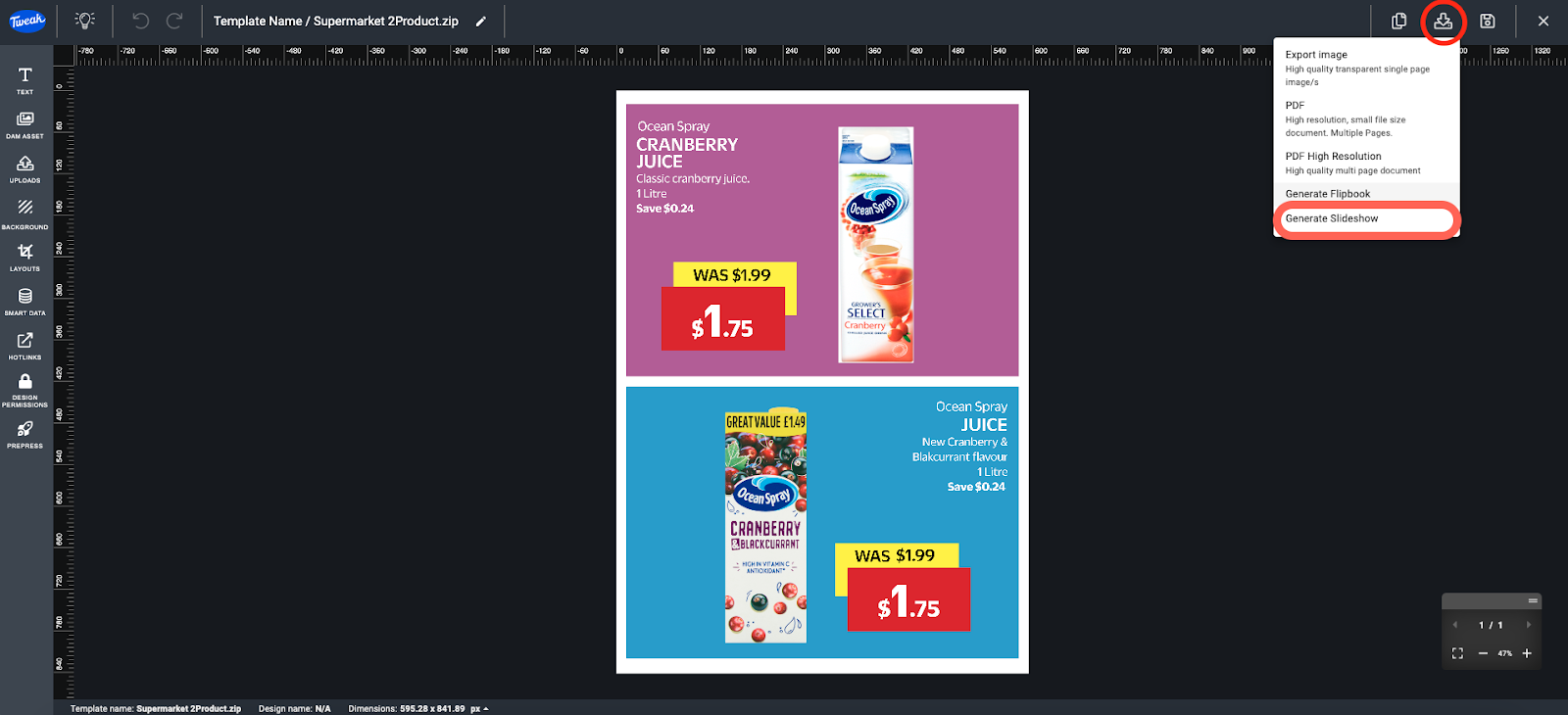
1- Click on the Save and Download icon at the top right corner of the navigation bar.
2- Click on Generate Slideshow.
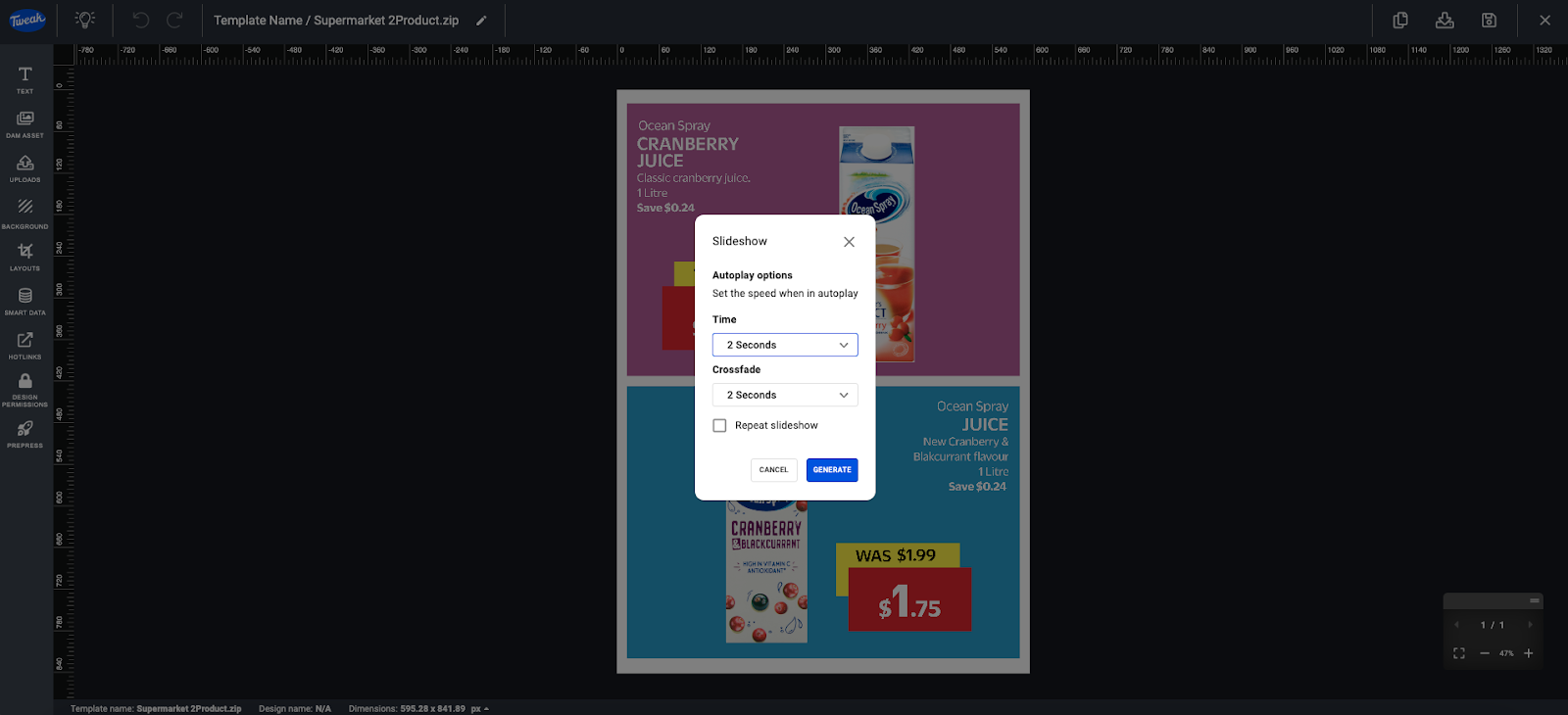
3- There will be a popup window, where you can set the settings of the slideshow, you can set the time it takes for a page to remain on the screen, the crossfade - (transition between pages) and whether a the slideshow should repeat.
4- Click on GENERATE once you have adjusted the slideshow settings.
5- You can copy the link in the search bar or if you would like to share the slideshow with others.








