
Conditional logic in Smart Data enables the manipulation of text and numbers within Templates and Designs based on specified conditions. This powerful feature allows for automated adjustments in pricing and typographic styling, making it easier to customize content based on the data in the Smart Database.
Conditional Operators: Conditional logic uses operators to evaluate conditions and perform actions accordingly. These operators determine how the text and numbers are manipulated based on the content in the Data Source records.
Price Layout Adjustment: Conditional logic is particularly useful for adjusting the layout of prices based on their values.
Styling Examples: Conditional rules can be applied to create different styling examples based on specific use cases. Multiple conditionals can be applied to a single entry, but only the first conditional query that returns true will be implemented. Any subsequent queries will be ignored. It is recommended to arrange the conditionals in order of highest to lowest value when setting up multiple cases.
By utilizing conditional logic, you can automate the customization of your Templates and Designs, ensuring that text and numbers are dynamically adjusted based on the data in the Smart Database. This provides flexibility and efficiency in creating personalized and tailored content.
1- On the Template Editor, open the Smart Data Section and select the Group you wish to add conditional.
2- On the Groups, select the Text Property you wish t add Conditional Rules and click on Three Dots icon and select Add/Edit Conditional.

3- Click on the Plus icon, add a Conditional Rule name and click Confirm.
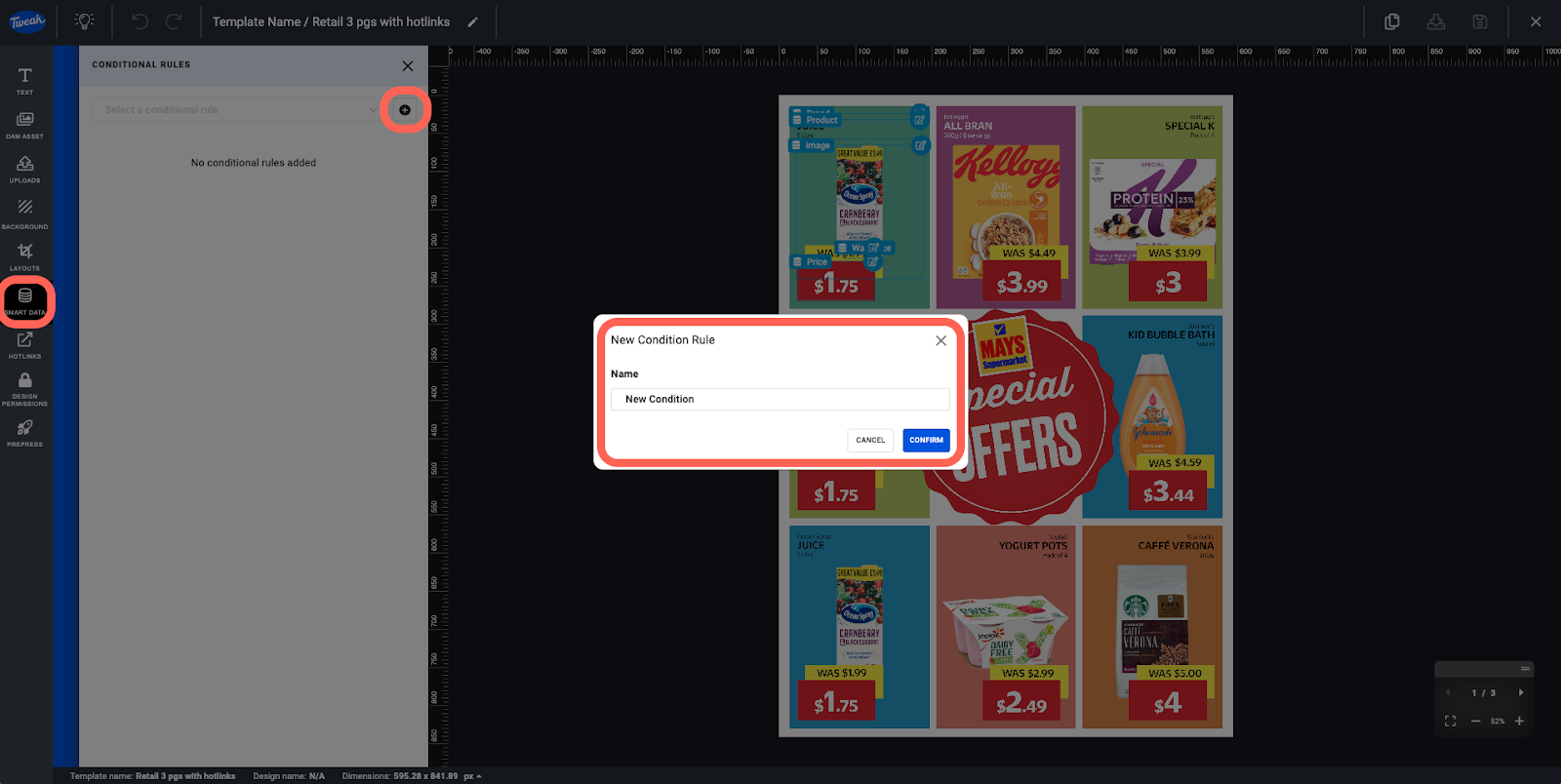
4- Select the condition and the action you would like to be performed if the condition is met by adding the Conditional Rule Property, Conditional and Actions.
4.1- Properties displayed on the Property fields are products in use on the selected Text Box.
4.2- Conditions are all the operators available:
Text: Text is empty, Text is not empty, text does contains, text doesn not contains, text starts with, text ends with, text is equal to, text is not equal to, text is greater than, text is greater than or equal to, text is less than or equal to.
Numbers: number is equal to, number is not equal to, number is greater than, number is greater than or equal to, number is less than, number is less than or equal, number is between, number is not between.
4.3- Action it’s where you select what’s will be displayed in case the conditional match. Options are: Default, Frame and Inline.
4.3.1- If you select Frame, click on any of the available properties to replace your current property.

4.3.2- If you select Inline, select an existent Inline Text presets or click on the Plus icon beneath Action and create an inline text preset - give your preset a suitable name, type your replacement text into the text field with the placeholder: Click to start typing and/ or drag any of the properties below Inline Text into the text field. You can have multiple properties in the text field if you wish.


4.3.3- If you select Default, it will keep the same structure.

5- Once conditional is defined, click on Apply.







