
The approval flow ensures that exported Templates and Designs undergo a review process before they are made available for export. This helps maintain quality control and consistency across your designs.
When a Template or Design requires approval, non-superusers are not allowed to export them directly. Instead, the export process follows the approval flow, which involves the following steps:
- Design Creation: The Design is created by the user.
- Submission: The Design is submitted for approval. The user can cancel the submission on anytime.
- Review: The submitted Design goes through a review process by SuperUsers and Admins.
- Approval Decision: The SuperUsers review the Design and make a decision to approve or reject it.
- Exporting: If the Template or Design is approved, export permissions are granted, allowing users to export the approved design.
By following the approval flow, you ensure that Templates and Designs meet the necessary quality standards and adhere to the established guidelines.
This helps maintain consistency in branding, design elements, and overall output quality across your organization.
1- Click on a template from the templates panel.
2- Click on SET PREFERENCES on the right navigation bar.

3- Enable Requires approval on the popup window that follows

1- Click on the Submit button to submit a template for approval after you are done with your editing.

2- You will have to confirm the name of the Design before it can be submitted.
3- The submitted template will be saved as a pending design that will need to be approved by a super user or an owner.
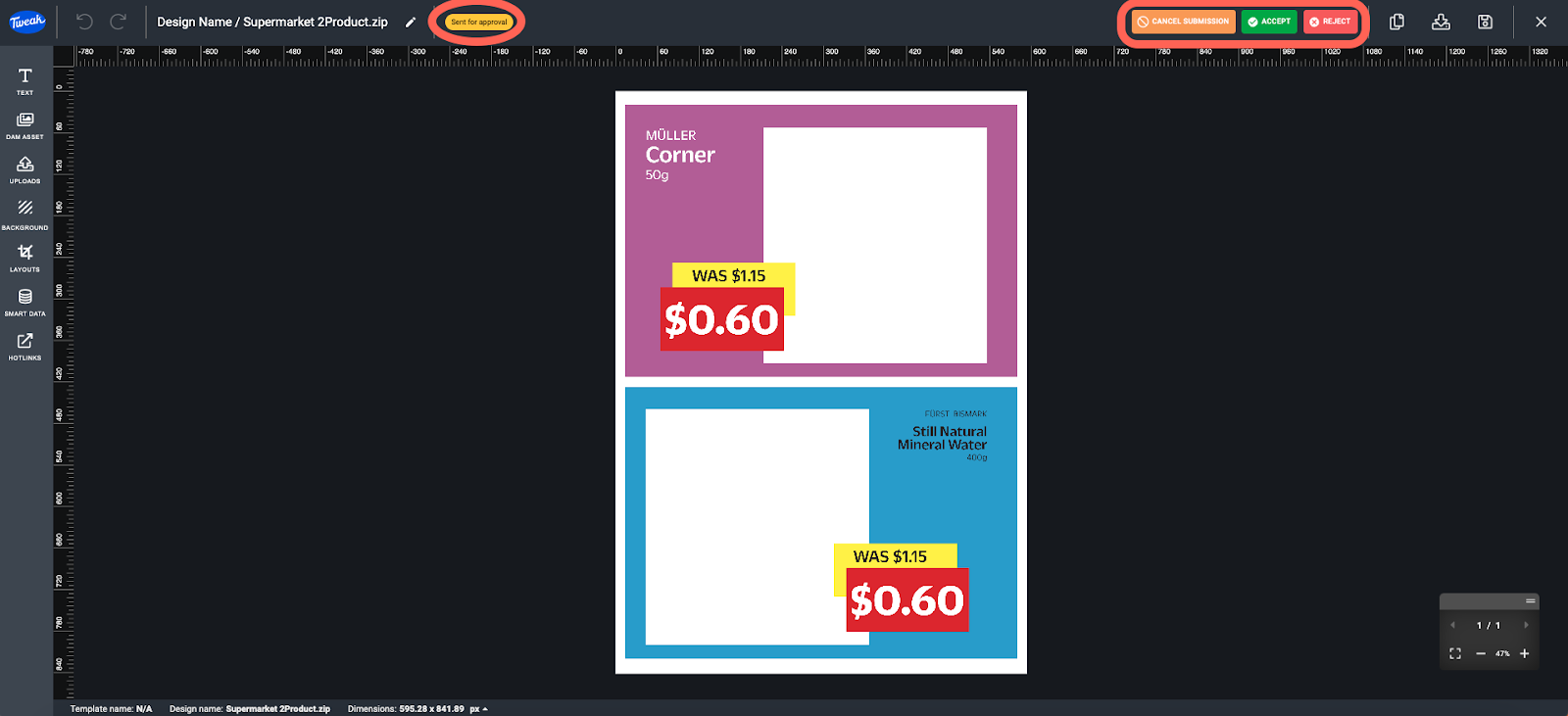
1- Click on ACCEPT on the top right corner to approve a pending design.
2- Click on either - CANCEL SUBMISSION (to set the design as a draft - work in progress), or REJECT (to set the design to reject in the event of an unauthorized submission).
1- Click on the Pending design.
2- Click on APPROVE on the right navigation panel to approve the design.
3- The status will then change from pending to approved.
4- You can also reject the design with the REJECT button on the right navigation bar.








