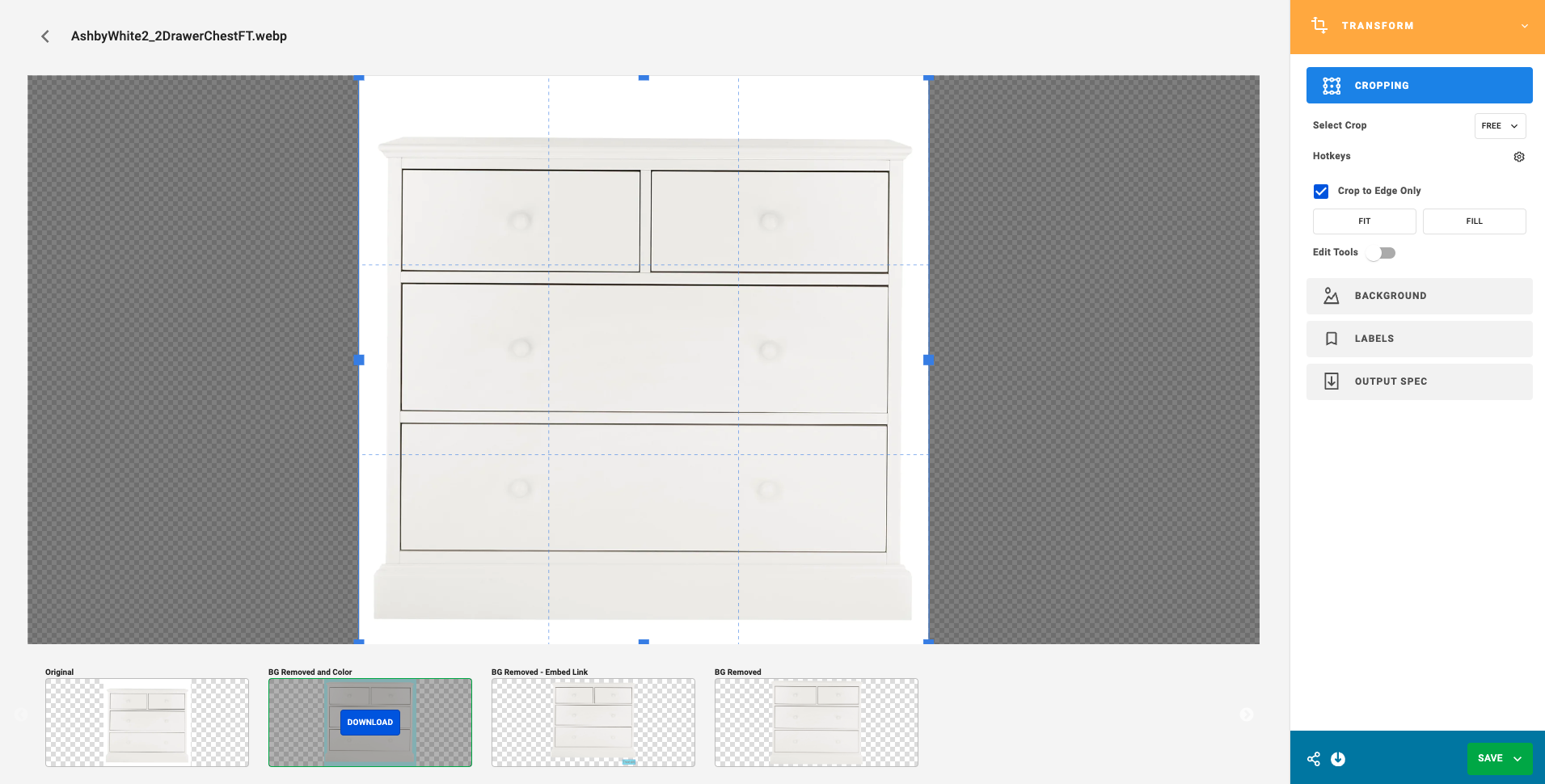
This tour will walk you through the process of using the Transform Tool to save and manage Saved Transformations for your assets. By saving transformations, you can easily access preset configurations for future downloads and utilize embedded links.
1- Access the Assets page and identify the asset you wish to create a Saved Transformation.
2- On the right-hand side panel, locate and click on the Transform button.
3- Utilize the Transform Tool to make any desired edits to the asset.
4- Click on the Save button and choose the option to Save Transformation.
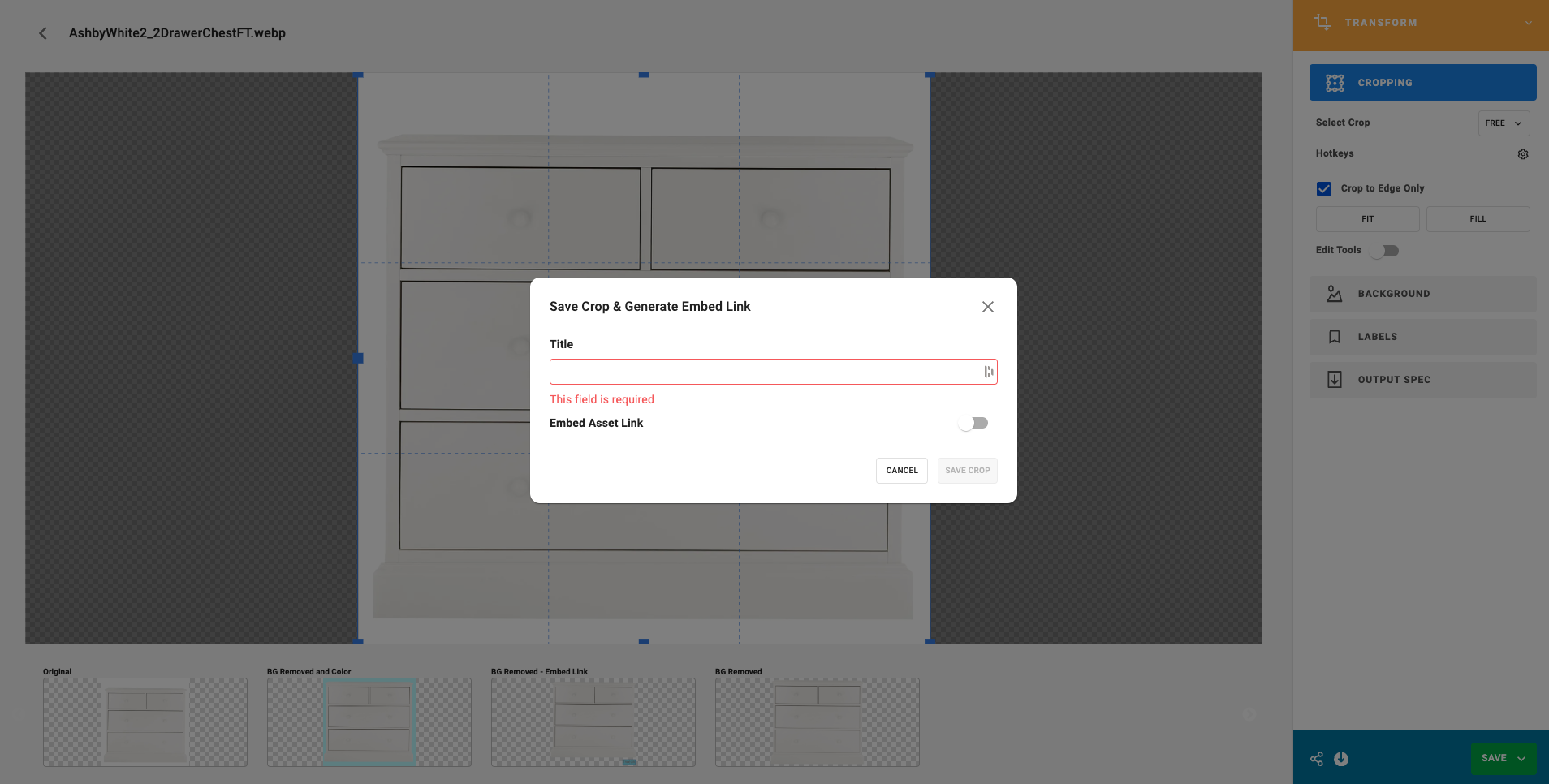
5- Provide a suitable Title for the Transformation and, if desired, enable the Embed Asset Link. Finally, click on Save Crop.
6- Congratulations! With the Crop successfully created, you can now perform various actions such as Downloading, Copying or Regenerating the Embed Link whenever you access the asset through the Transform tool.