
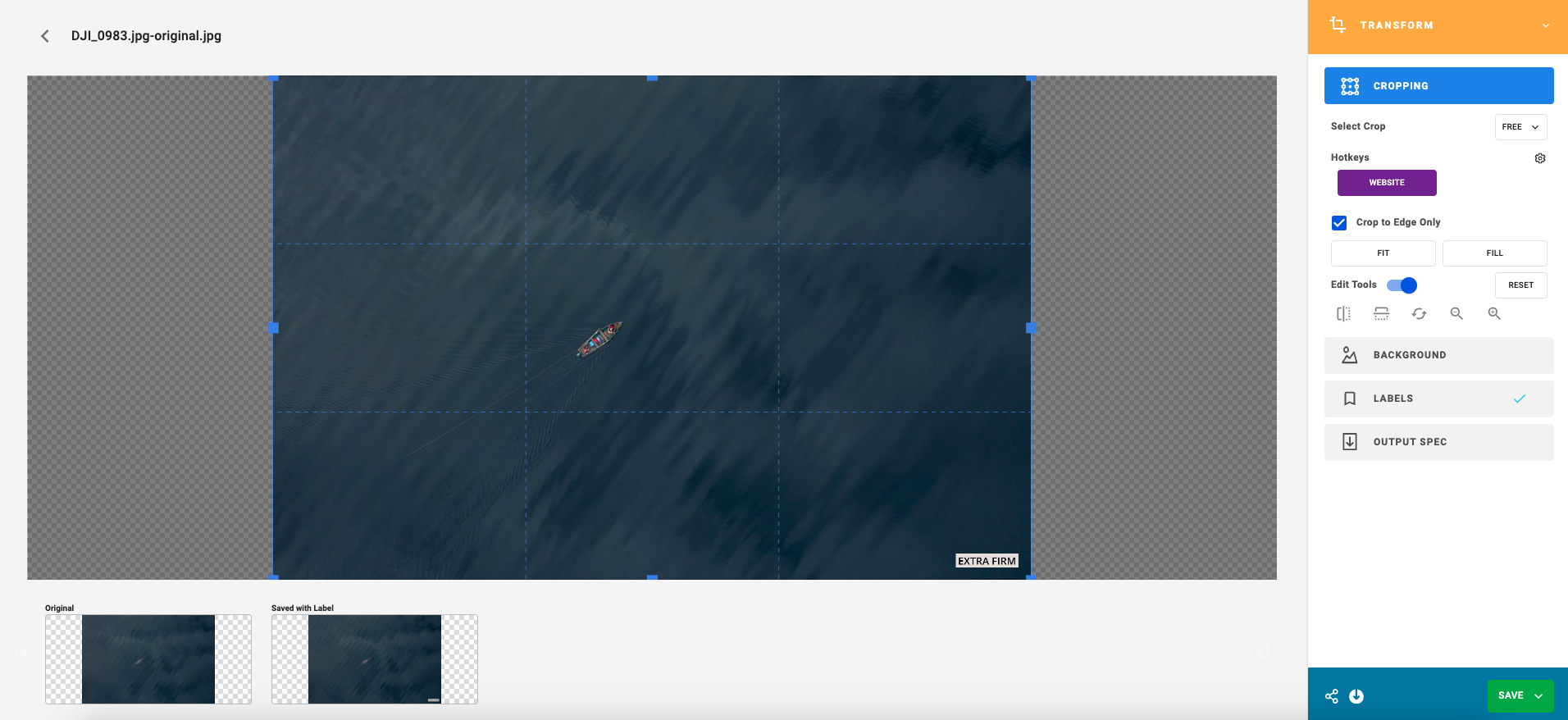
1- Select single or multiple images and click on the yellow Transform button from the right hand panel.
2- Select the appropriate crop mode. Free Crop is unlimited. Aspect Ratios offer a range of common aspect ratios, Social offer social media crops, Display offers digital ad sizes. Custom refers to saved Crops.
3- To apply the same crop to multiple selected images, select Follow mode. To turn off selected crops from the follow mode, deselect.
4- To fit or fill images within the crop shape, select Fit or Fill
5- A range of rotation and flipping tools open when Edit Tools is toggled
6- There are now a number of options for the cropped image
1- Select single or multiple images and select the yellow Transform button from the right hand panel.
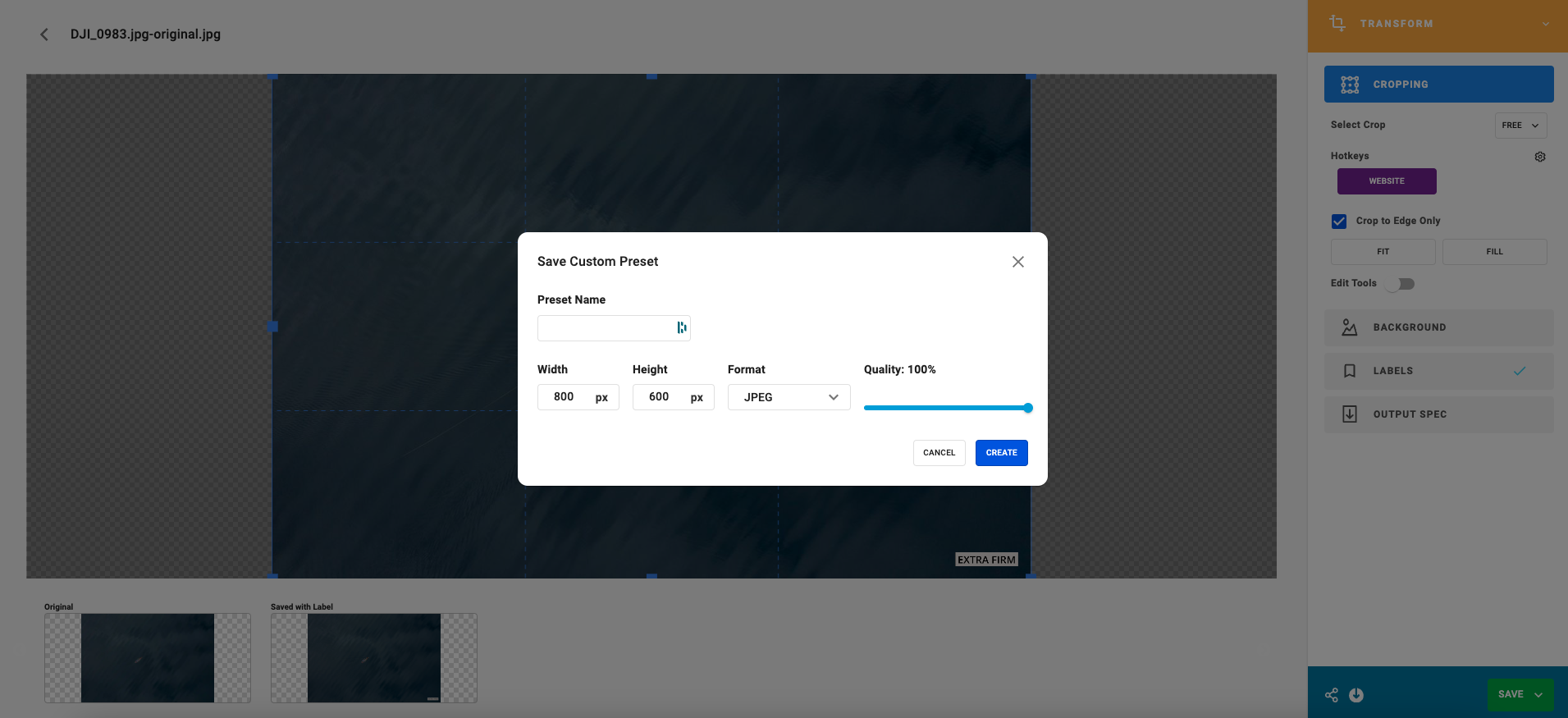
2- Select the Custom crop mode and click on + Custom Preset.
3- Enter a Name for your Custom Crop.
4- Enter the Width or Height you wish to save in Pixels, Select the Quality (100% is minimum compression, maximum quality) and select the format for your custom crop – JPEG, PNG or WebP.
5- The new crop will now appear under Custom Crop to use in the future.
Specific crop sizes, resolution and formats can be saved using Custom crops or standard crops and easily accessible within the Transform Menu using Hotkeys. Simply select a Custom or Fixed Crop.
1- Click on the gear beside Hotkeys within the Transform Menu.
2- Select the Preset Crop you wish to Use.
3- Type a name which will appear on the button of your Hotkey.
4- Select a color for the button.
5- Click Create to finish the Hotkey.

Options to save your work
Download using the downward arrow key.
Share by email using the share button.
Save as a New Asset using the green save button.
Save as a New version of the existing asset using the green Save button, when saving as a New Version it the saved version will become the Master.
Save as a New Transformation, which saves a single asset in the Transform Tool, with an option to embed the link for sharing.







