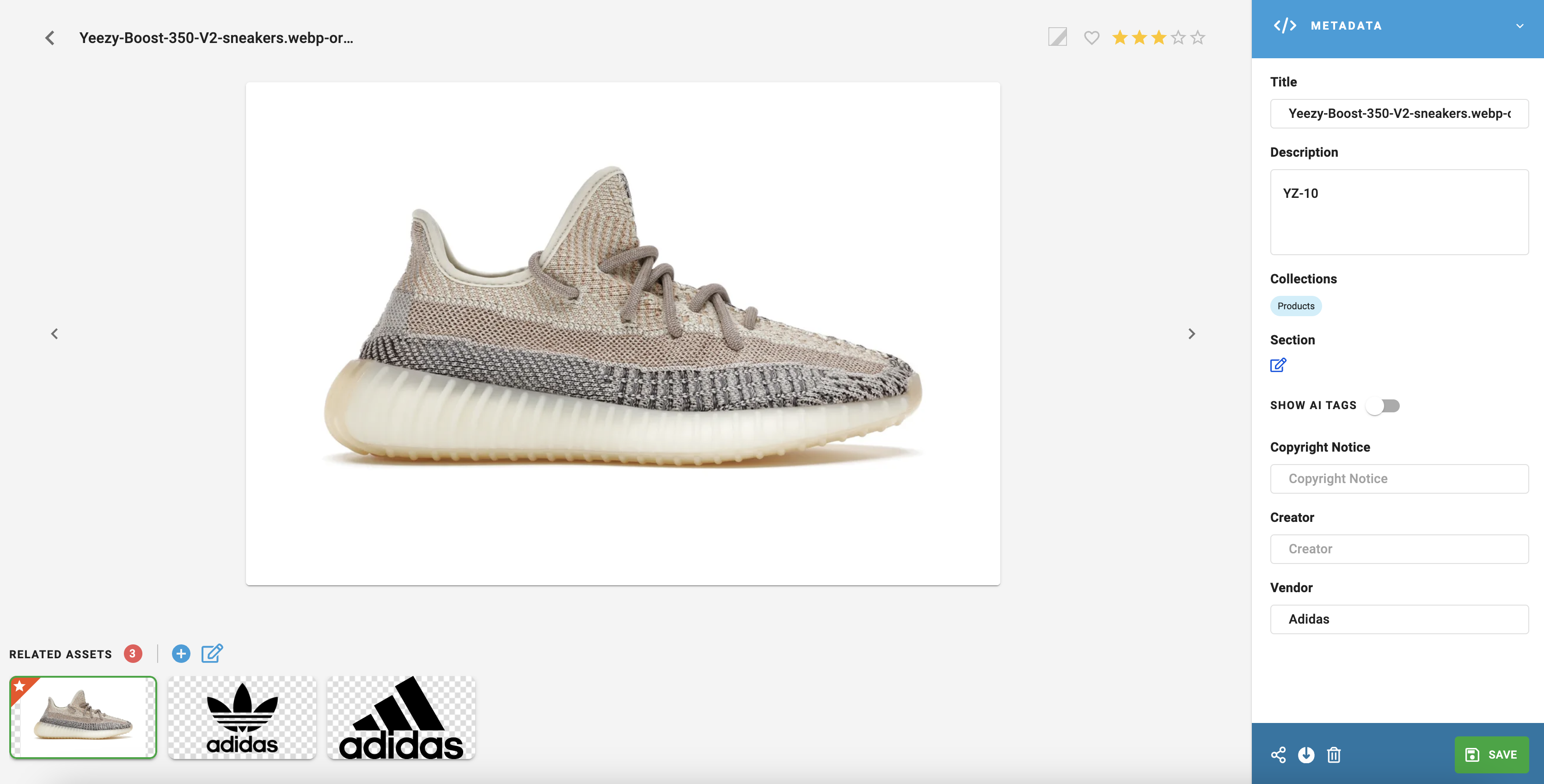
Super Users can edit Asset Metadata in a variety of different places. In the single asset view, in the multi image screen (in bulk), in Data View or from the home view.
1- Double click on an asset
2- On the right hand panel, it’s possible to edit Title, Description, Tags (Section), Category, Copyright Notice and Creator as well as any custom fields which have been added.
3- Click Save on the bottom right of the dialog, which will be followed by a confirmation.
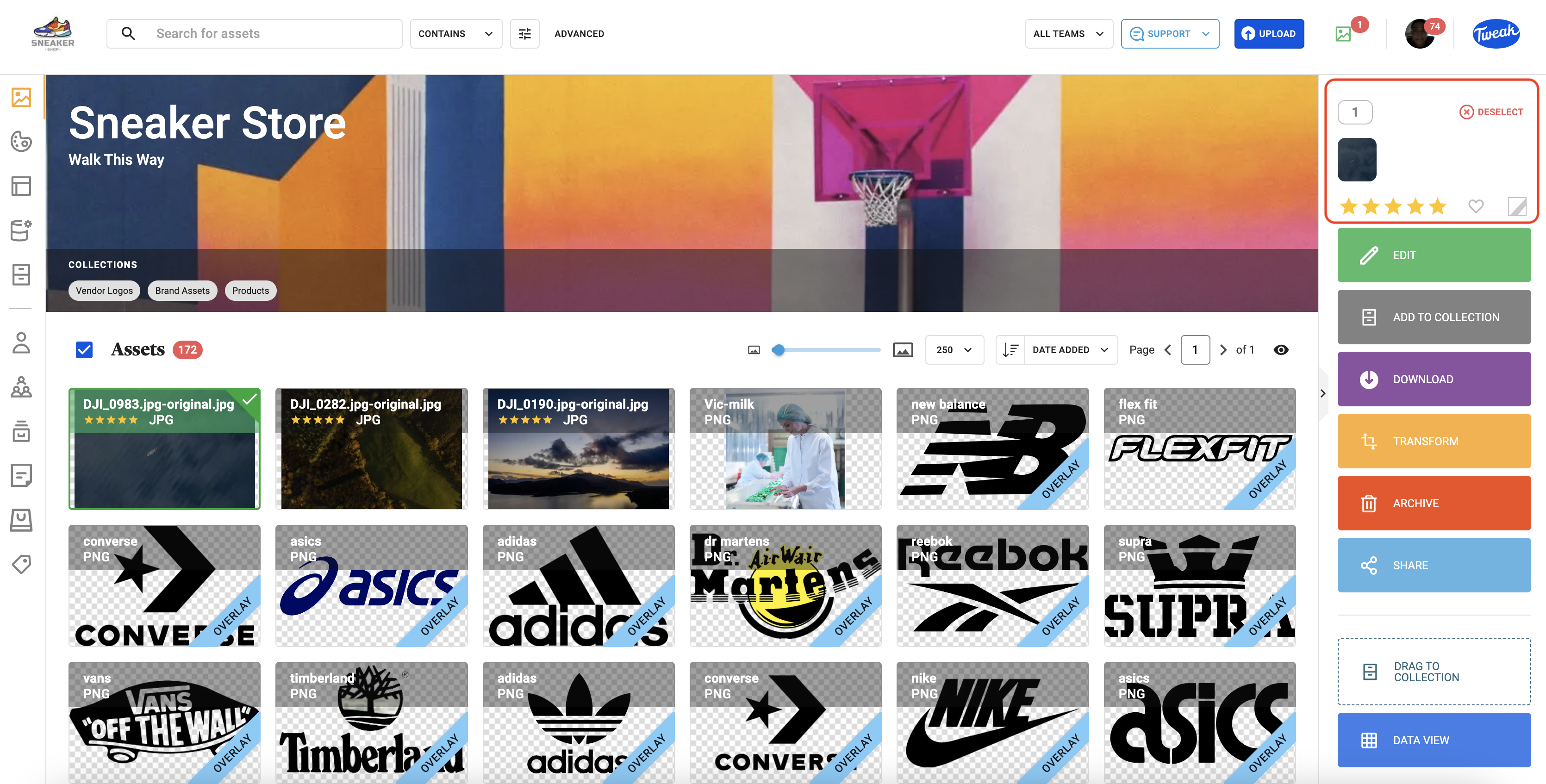
1- Select a single asset by clicking on the image – the asset will be highlighted in green.
2- Select multiple asset by dragging your mouse across the page or using shift click or shift command (on Macintosh) or shift control (on a PC).
3- To change Star Ratings, Favourite or Labels, select the assets and click on the Star Rating, Favourite or Label required.
Note: Ensure that the Eye icon on the top right of the home page is showing the asset flags you require as visible.
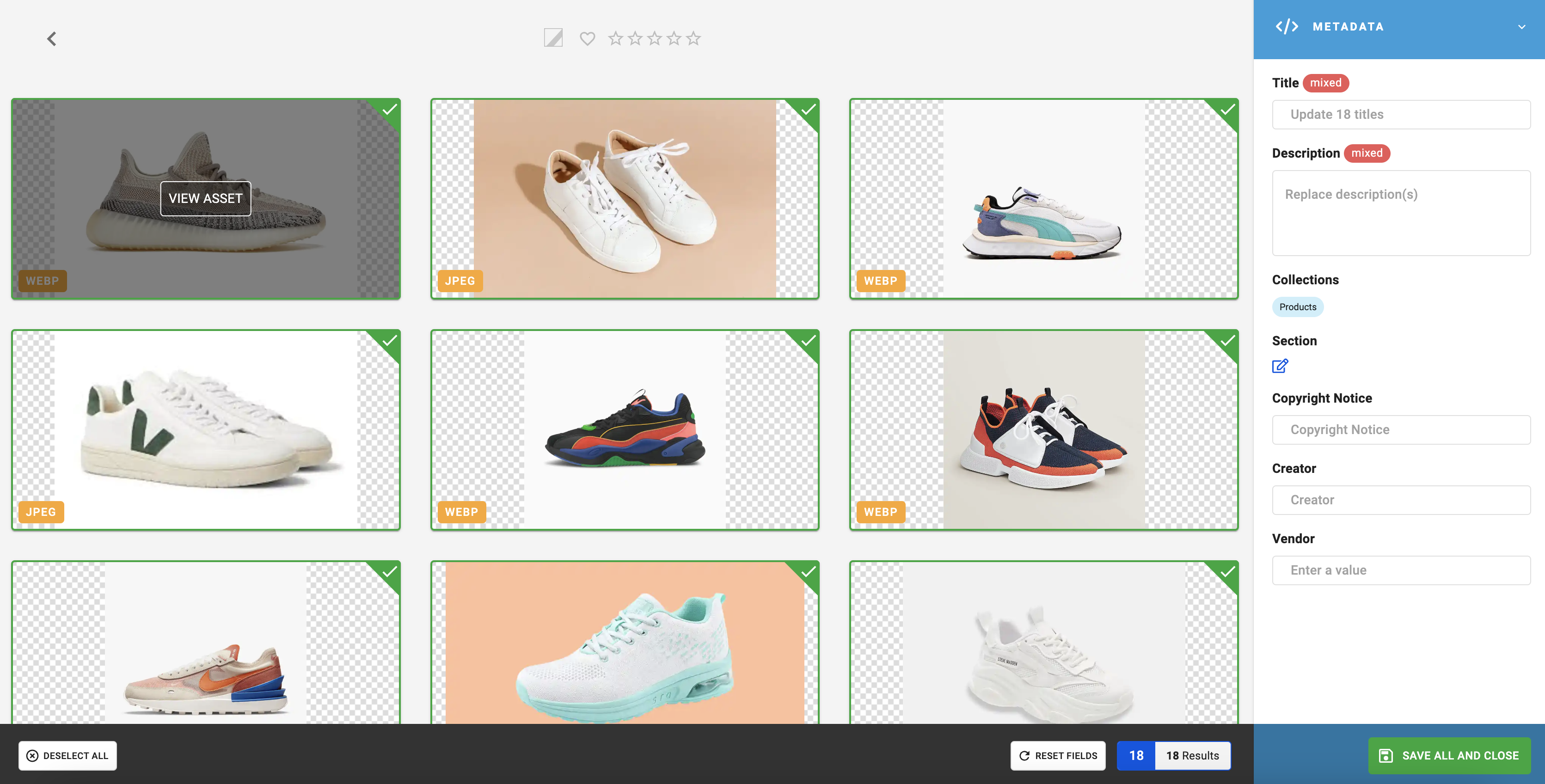
1- Select the images required
2- Click on Edit on the right hand panel
3- On the metadata fields on the right hand side, enter the metadata you wish to replace what exists, if any, in the selected assets.