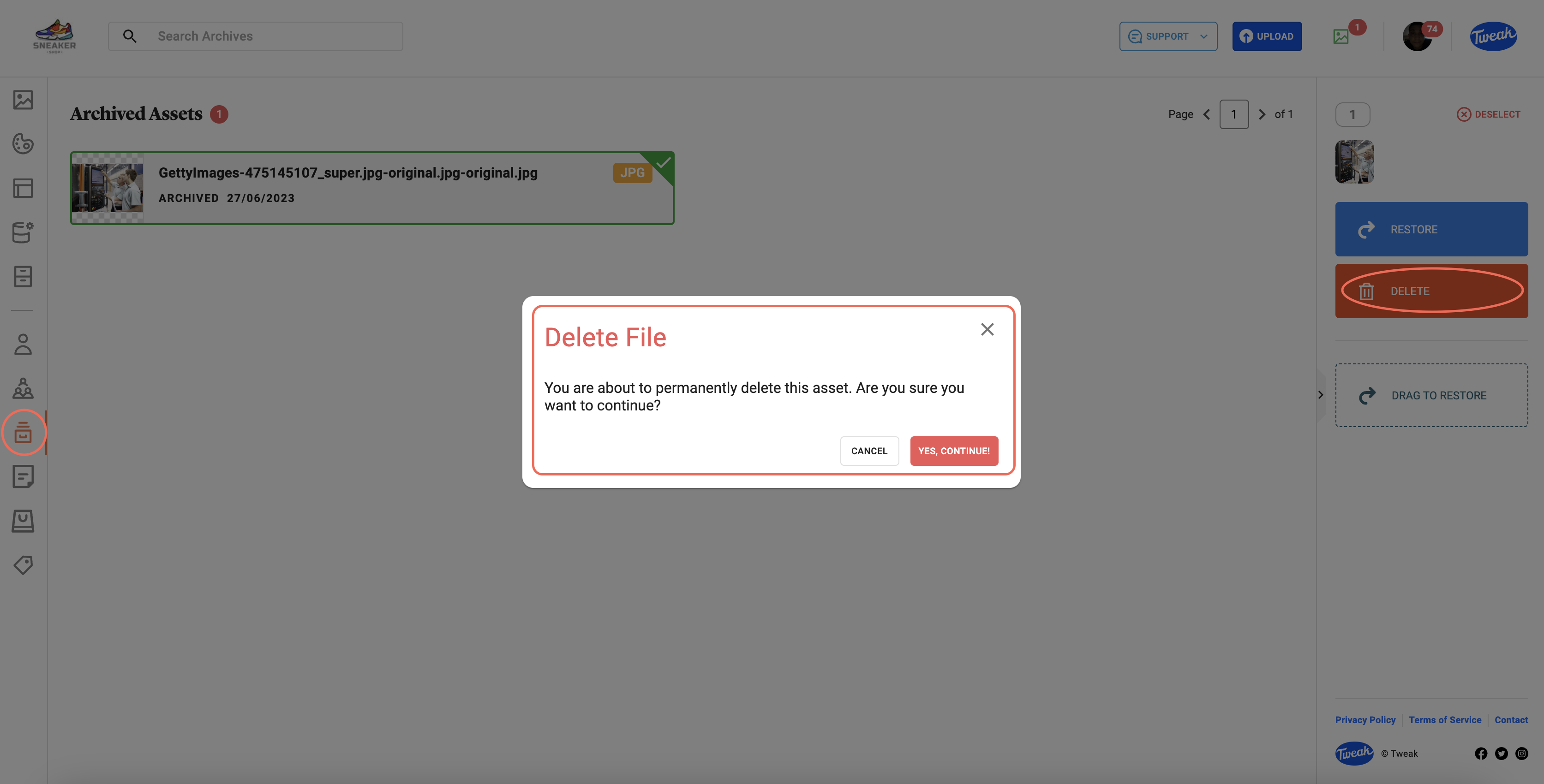
Assets which are no longer relevant can be archived and later deleted.
1- Select the assets you wish to archive.
2- Click on the red Archive button on the right panel on the home page.
3- Click Yes, Continue to confirm your instruction.
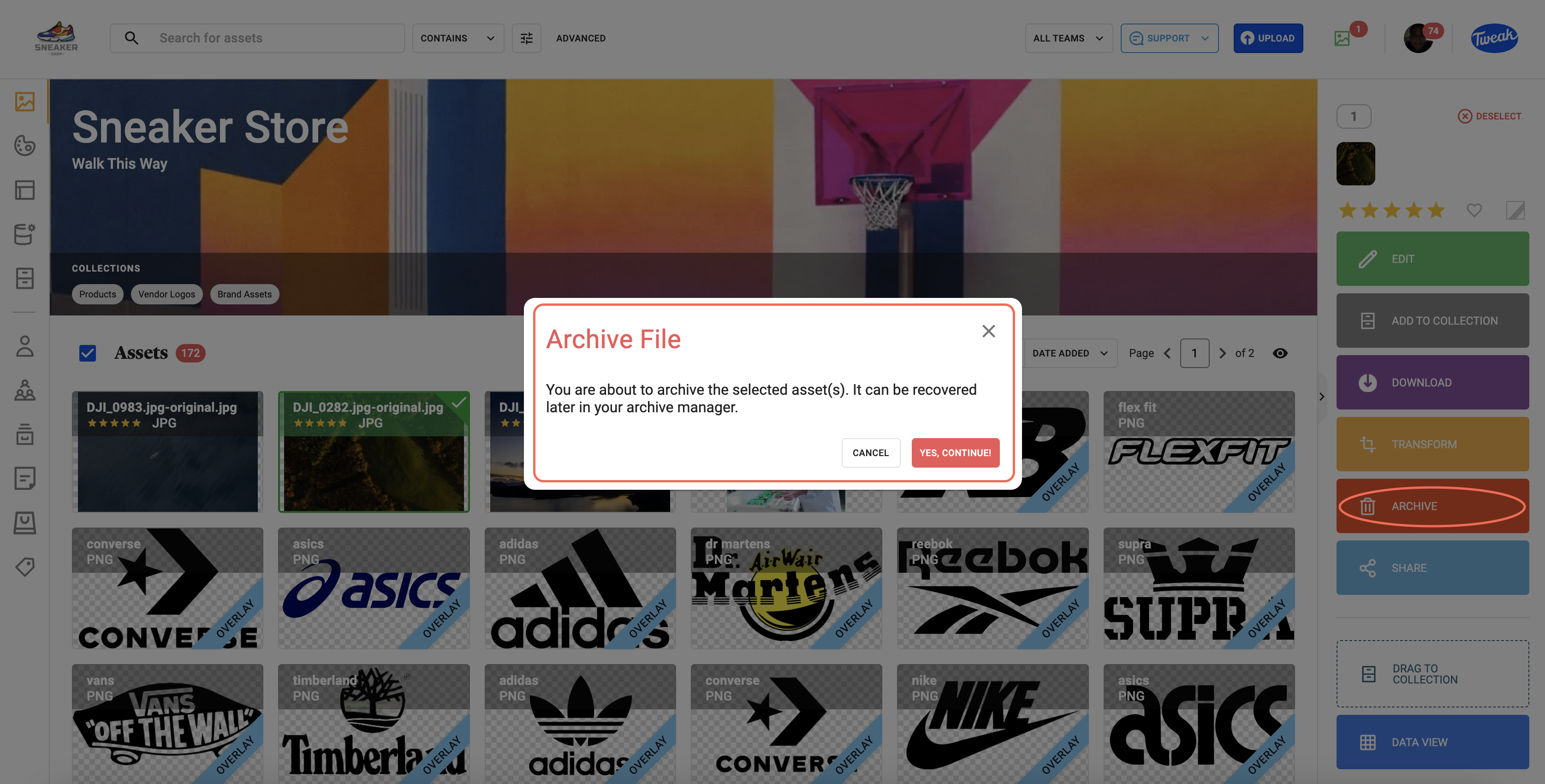
1- Click on the Archive icon on the left hand panel.
2- Select the asset/s you wish to restore.
3- Click on the blue Restore button on the right hand panel.
4- Click Confirm to confirm your instruction.
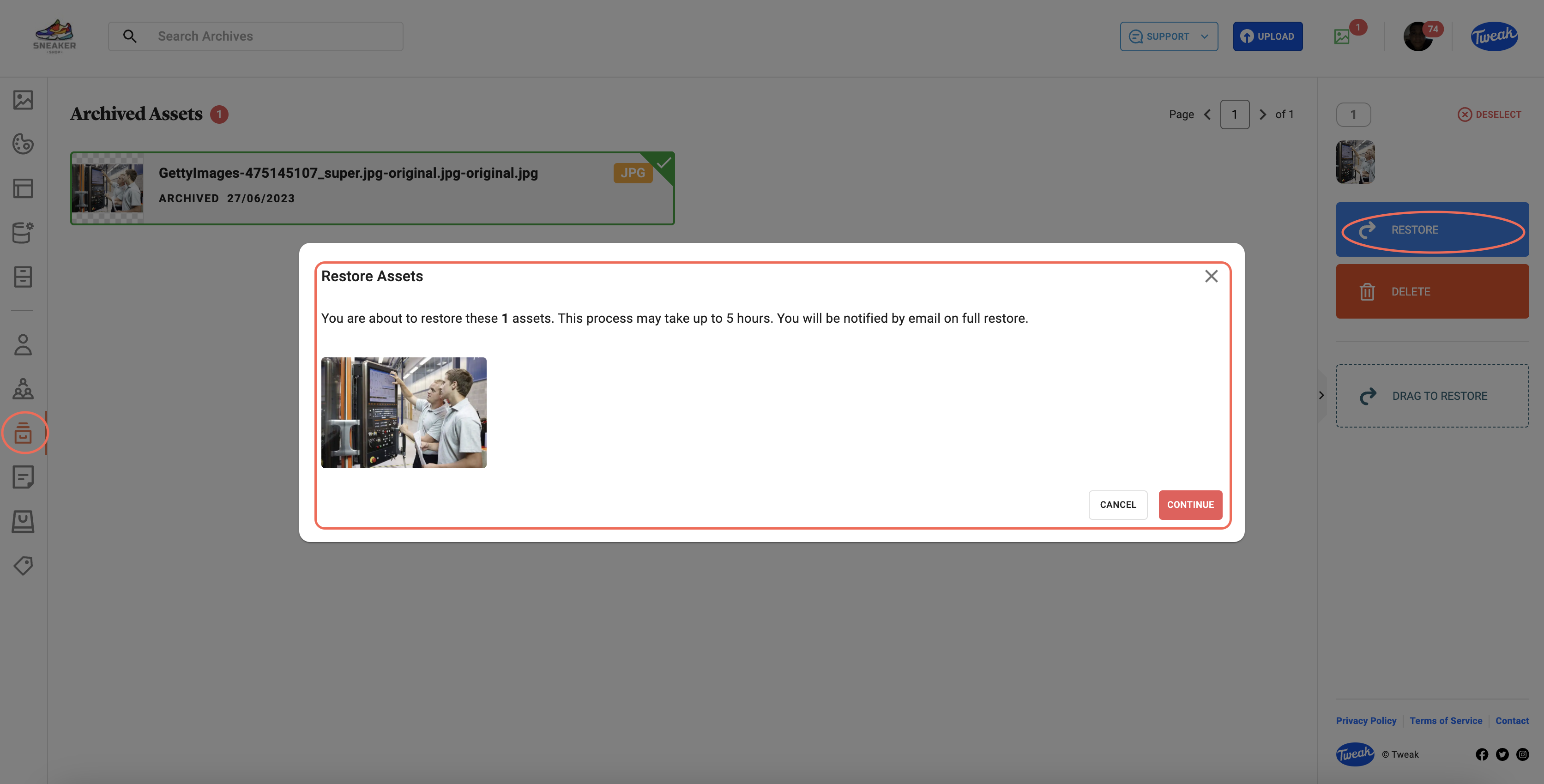
As a safety precaution, it’s only possible to delete assets that have been already archived.
1- Click on the Archive icon on the left hand panel.
2- Select the asset/s you wish to delete.
3- Click on the red Delete button on the right hand panel.
4- Click Confirm to confirm your instruction.