1- Click on the (teams icon) on the left panel
2- Select a team or teams (They will turn green)
3- On the right hand panel, select Add Collections
4- Select Collection/s to add to the team (The selected Collections will turn green)
5- Click Continue and you’ll get a confirmation that the Collection/s have been added to the Team/s you’ve selected

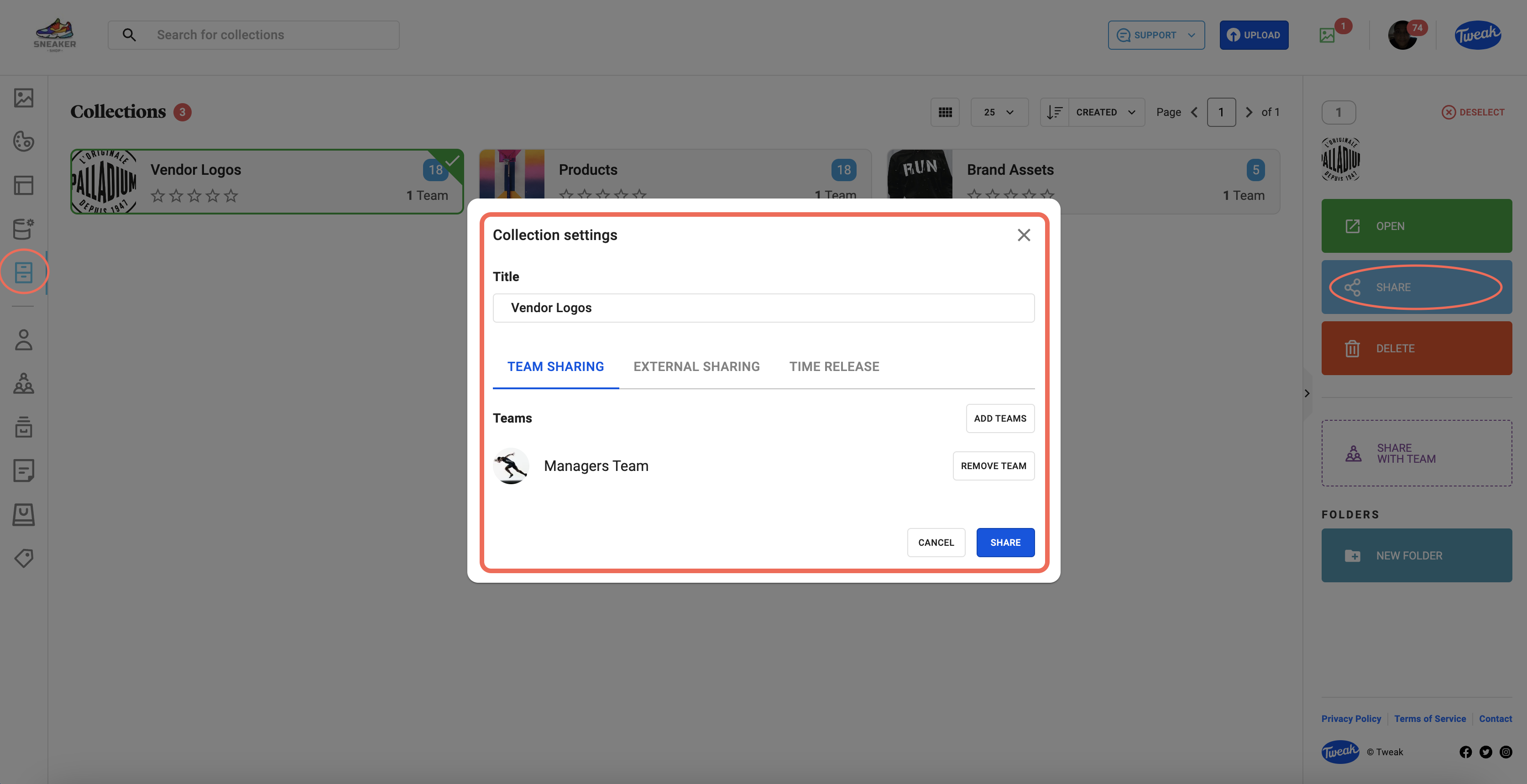
1- Click on the (Collection icon) tab on the left panel
2- You’ll be presented with all the Collections available to share
3- The Collection/s you’ve selected will turn green. Click on the Share button on the right hand panel.
4- If the Collection is already shared with an existing team, it will be listed here (Select remove team if you wish to remove access). If you wish to share with new teams, click Add Teams.
5- You’ll be presented with a list of teams. Click on the team/s you wish to share to. Click Add to Teams followed Share. you’ll get a confirmation that the teams have been added to the Collection.